
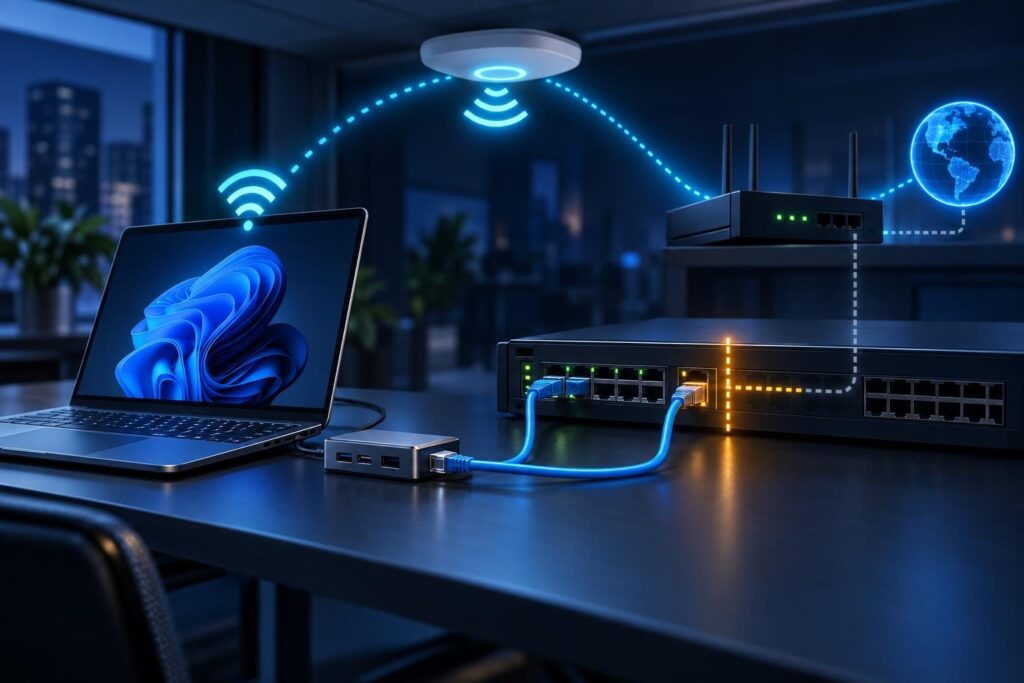
If Wi-Fi works but Ethernet fails, start by comparing the two connections—not resetting the router. Your computer uses separate adapters, addresses, and access rules for each connection. Wired traffic may also cross a different network segment or firewall policy.
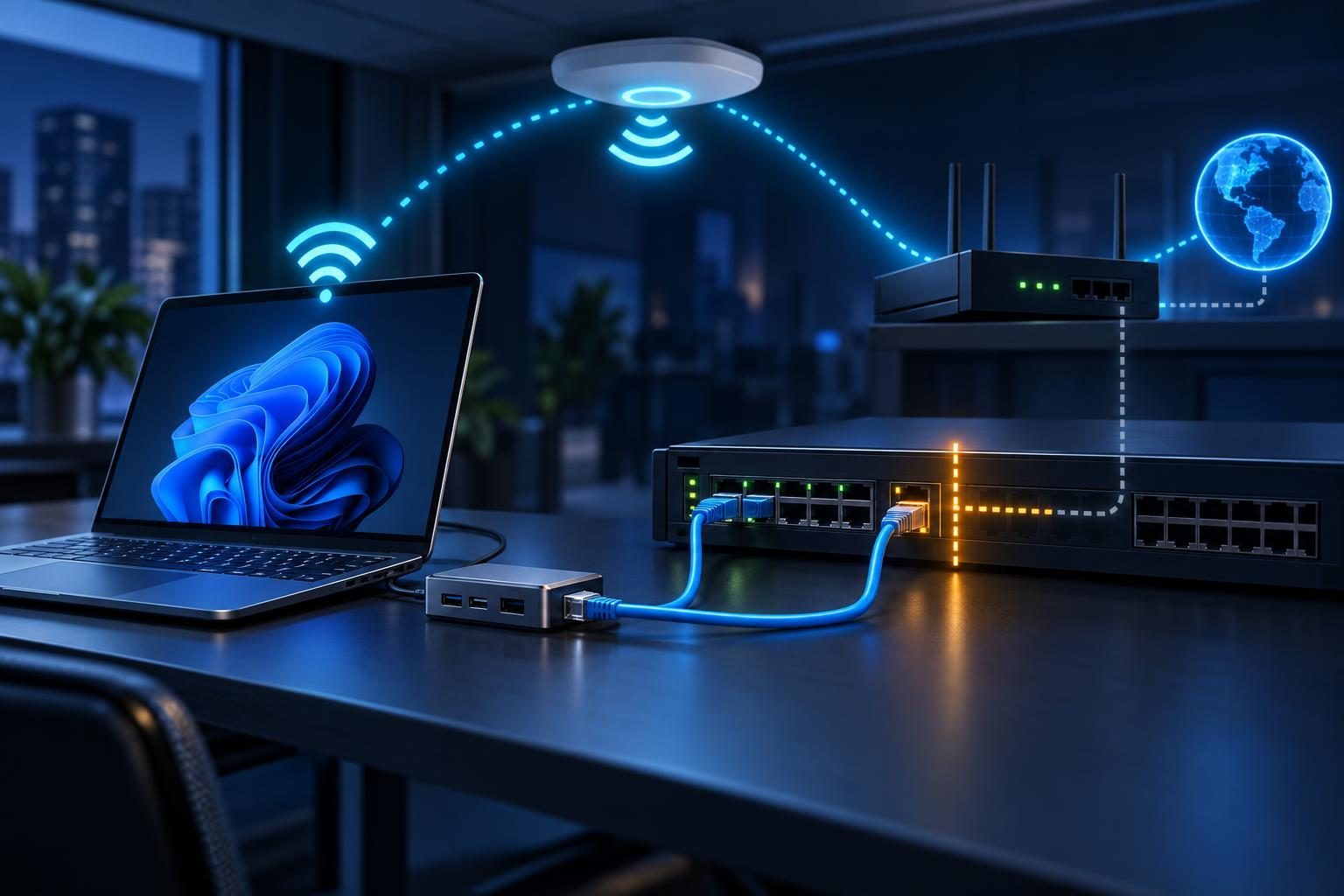
This workflow uses working Wi-Fi as a reference while testing the wired path independently. It helps distinguish a computer problem from a cable, switch, addressing, or security problem. Windows commands provide practical examples, but the diagnostic order applies to other systems.
Establish a Controlled Wi-Fi and Ethernet Comparison
First, define what “works” means. Open the same approved website and business application through each connection. Record the time and exact error. A working browser does not prove that shared drives, remote access, or every internet service works.
Keep these conditions consistent:
- Use the same computer, destination, and application.
- Record whether a VPN or proxy handles the connection.
- Note the wired adapter, dock, wall jack, and switch port.
- Check whether other wired computers show the same failure.
Before disabling Wi-Fi, protect your remote support session. Arrange an on-site helper or another approved recovery path. Adapter changes can disconnect the technician.
For a local test, temporarily turn off Wi-Fi after recording its settings. Otherwise, successful traffic may still travel over wireless. If remote access requires Wi-Fi, a technician should verify the selected interface and route for each test.
Do not assume both adapters belong to the same network. Guest Wi-Fi may allow internet access while wired business access requires authentication.
Check the Physical Ethernet Link First
Look for Ethernet link status in the operating system and on the switch. A link light confirms a physical connection, not internet access. An adapter can show “connected” while the network blocks its traffic.
- Confirm that the operating system detects and enables the wired adapter.
- Reseat the cable at both ends.
- Try a known-working cable with the original adapter and port.
- Test an approved alternative adapter or dock, changing one item at a time.
- Ask the network administrator to inspect the switch port status and error counters.
Record whether the fault follows the cable, adapter, or wall jack. Avoid moving cables between unidentified ports. A neighboring port may serve phones, cameras, or a restricted network.
If the link repeatedly drops, pause higher-level testing. Follow the narrower Ethernet link negotiation workflow before investigating DNS. Do not force speed or duplex settings without checking both ends.
Compare Wired and Wireless IP Configuration
On Windows, run ipconfig /all in a terminal. This displays adapter settings without changing them. Save the output securely; it can reveal internal network details.
Compare these fields for the actual Wi-Fi and Ethernet adapters:
- IP address: the address each adapter uses on its network.
- Subnet mask: the boundary that defines which IPv4 destinations are local.
- Default gateway: the router used for destinations outside the local network.
- DNS servers: the services that translate names into addresses.
- DHCP status and server: whether automatic configuration supplies the settings, and from where.
DHCP means Dynamic Host Configuration Protocol. It supplies addresses and related network settings automatically.
A self-assigned IPv4 address beginning with 169.254 often indicates that DHCP did not provide a usable lease. However, IPv6 may still provide connectivity. Inspect both address families rather than declaring complete failure from one IPv4 value.
A normal-looking private address can still be wrong. Old static settings may point to a previous office network. Compare Ethernet settings against the intended wired subnet, not simply the working wireless values.
Trace VLAN, DHCP, and Switch Access Differences
When Wi-Fi works but Ethernet fails, different network membership often explains the contrast. A VLAN, or virtual local area network, separates traffic on shared switching equipment.
Ask the administrator to verify the intended wired VLAN and the port’s actual assignment. Most ordinary computers send untagged traffic. The switch must place that traffic into the correct network. Specialized endpoint configurations may differ.
Check these items together:
- The port’s configured and active VLAN assignments.
- Wired authentication, including 802.1X access checks where required.
- Port security restrictions tied to an adapter’s hardware address.
- DHCP address availability and requests from the wired adapter.
- The DHCP relay, which forwards requests when the DHCP server sits elsewhere.
A USB dock has its own network identity on many systems. Replacing it can trigger access restrictions or change address assignment behavior.
Use a known-working wired device on the same approved port only with administrator permission. Port security may reject replacement devices. If both devices fail there, investigate the shared path. If only one fails, inspect that endpoint’s settings and access status.
Do not copy another computer’s IP address. That creates a potential address conflict and hides the original problem.
Test the Gateway and the Selected Route
Once addressing looks correct, test the configured wired gateway. On Windows, use ping followed by its actual address. Some gateways ignore ping, so silence alone does not prove a broken connection.
Use arp -a to inspect IPv4 neighbor entries after the test. A gateway hardware address suggests local address resolution worked. It does not prove that the gateway forwards traffic. IPv6 uses a different neighbor discovery mechanism.
Next, inspect route print. Look for a default route through the expected wired gateway. Check for VPN routes, stale static routes, or another adapter taking precedence.
With an administrator, test an approved external destination by numeric IP and a known service port. A successful connection separates basic internet reachability from name resolution. Avoid judging HTTPS by typing an IP into a browser; certificate and hosting behavior can mislead you.
If local access works but external connections fail, inspect the wired subnet’s firewall policy and upstream route. Check IPv4 network address translation, or NAT, where the design requires it. Working Wi-Fi may use different rules.
Separate DNS Failure From Connection Failure
DNS becomes the main suspect when numeric-address connections work but name-based connections fail. Compare the DNS servers that each adapter receives.
On Windows, run nslookup followed by the affected hostname. Note which server answers and whether it returns an address, a timeout, or an error. With permission, repeat against the intended wired DNS server explicitly.
A successful lookup does not prove the application uses that same resolver. Browsers, VPN clients, and security software may use separate name-resolution settings.
Do not replace company DNS with a public resolver as a default fix. That can break internal names or bypass required controls. Cloudflare’s DNS overview explains the lookup process if you need background.
If both adapters resolve the same destination correctly, move to connection and policy checks. Repeatedly clearing the DNS cache will not repair a missing route or blocked connection.
Inspect Endpoint Firewall and Security Profiles
Windows can classify Wi-Fi and Ethernet under different network profiles. Firewall rules may therefore permit an application on one connection but restrict it on another.
Review the active Ethernet profile, application rules, and relevant security logs. Also inspect VPN kill switches, endpoint filtering, and proxy settings. These controls may reject traffic after an interface change.
Do not disable the entire firewall or security agent to test a theory. Instead, match one failed connection to its time, destination address, port, and application. An administrator can then review the specific rule or approve a narrow, temporary test.
A firewall allow entry alone does not establish successful delivery. If that evidence appears contradictory, use the allowed-traffic timeout investigation to trace the return path and application dependencies.
Confirm the Repair and Preserve the Evidence
After one targeted change, repeat the original test with Ethernet as the verified path. Confirm internet access, internal services, and any required VPN. Restore normal adapter settings and remove temporary test exceptions.
Record the cause, changed setting, rollback method, and final results. Keep the original addressing and switch-port evidence for comparison. Avoid broad network resets unless narrower checks justify them and you have a recovery plan.
If Wi-Fi works but Ethernet fails after these checks, professional help may be appropriate. Tech Rescue Ops LLC provides remote diagnostic assistance for endpoint and network issues. An on-site contact may still need to inspect cables or move an approved connection.