
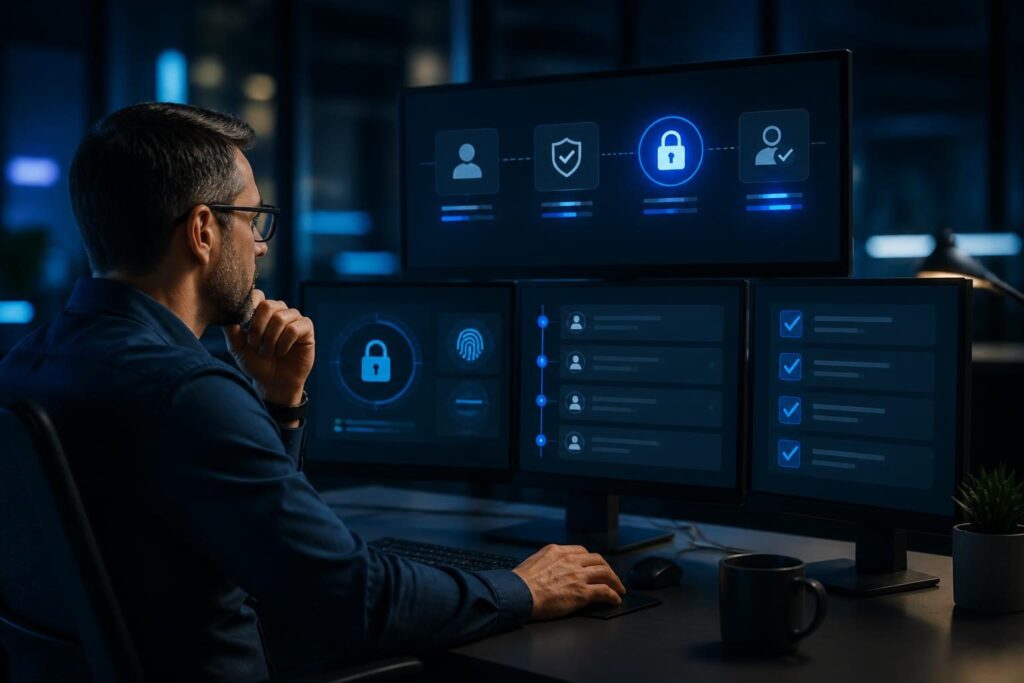
Secure remote technician access controls help a business receive fast technical assistance without giving every helper unlimited access. The goal is not to make support difficult. It is to make access deliberate, visible, limited, and easy to remove.
Remote support tools can help diagnose computers, servers, networks, applications, and user accounts. However, the same tools can expose sensitive files or powerful administrative functions. A sound process therefore controls who connects, what they can do, when they can connect, and what happens afterward.
Why remote technician access needs guardrails
A technician may need to view settings, run diagnostic commands, install an update, or change a service configuration. Those actions can affect business operations and confidential information. Even a well-intentioned session can create risk if the wrong account, device, or system receives access.
Remote access also creates a trust problem. A business must verify the request, the technician, and the support channel. Employees should not approve unexpected connections because someone claims to be from technical support. The FTC guidance on avoiding tech support scams explains why unsolicited support requests deserve caution.
Good secure remote technician access controls reduce several common problems:
- An unknown person receives a one-time access code.
- A technician keeps access after the work ends.
- A shared administrator password appears in chat or email.
- An unattended agent remains active on a rarely monitored computer.
- No one can determine what changed during a session.
- A support account has more rights than the task requires.
Build a clear approval workflow
Approval should happen before a technician connects, except during a documented emergency process. The workflow does not need expensive software. It needs clear ownership and consistent records.
Use a request with a defined purpose
Every session should have a reason, a target, and an expected result. “Fix the computer” is too broad. “Review the failed printer installation on the accounting workstation” gives the technician and the business a useful boundary.
Record the request in a ticket, support email, or approved service portal. Include the requester, affected system, business impact, requested actions, and preferred time window. If the request involves sensitive data or production systems, identify the person who must approve it.
For a practical preparation list, see what to collect before remote technical support. Clear system ownership makes secure remote technician access controls easier to apply.
Separate approval from execution
The person who reports a problem may not have authority to approve administrative access. Define which roles can approve workstation, server, network, email, and financial systems access. For higher-risk changes, require a second reviewer.
Approval should name the access scope and expiration time. A short window is safer than open-ended permission. If the work takes longer, the technician should request an extension rather than quietly continue.
Technicians should also confirm the identity of the employee who starts the session. A ticket alone does not prove that the person at the keyboard is authorized. Use an established callback method or an approved identity platform for sensitive work.
Apply least privilege to technician access
Least privilege means giving an account only the permissions needed for a specific task. It does not mean denying useful support. Instead, it limits the possible effect of a mistake or compromised session.
For example, a technician troubleshooting a desktop application may need local administrator rights on one workstation. That does not automatically justify access to the domain, firewall, payroll system, or production server. These boundaries are central to secure remote technician access controls.
- Start with a standard user account when administrative rights are unnecessary.
- Use a separate technician account for elevated work.
- Limit server access to the required host and service.
- Use read-only permissions for inspection where possible.
- Restrict network administration to approved devices and time windows.
- Require separate approval for data export, deletion, or security changes.
A password manager or privileged access system can help avoid sharing credentials. Do not place passwords in a ticket, screen-sharing chat, plain text file, or email. If a password must be entered during a session, the authorized employee can enter it without revealing it to the technician.
For integrations, use revocable service credentials with narrow permissions. WordPress administrators can review the official guidance on application passwords when an integration needs separate authentication.
Make MFA part of the access decision
Multi-factor authentication, or MFA, requires more than a password. It may use an authenticator app, security key, or another approved factor. MFA helps protect technician accounts when passwords are reused, stolen, or exposed.
Require MFA for the remote support platform, ticketing system, privileged accounts, password vault, and administrative consoles. Prefer phishing-resistant methods, such as security keys, for accounts with broad control when the platform supports them.
MFA does not replace approval. An attacker may trick an employee into approving a fraudulent connection, or a technician account may already be compromised. The person approving access should still verify the request, target, and reason.
Recovery methods deserve attention too. Keep backup authentication methods controlled and documented. Avoid shared MFA devices. Review who can reset MFA, because a weak recovery process can bypass a strong login requirement.
Control unattended access carefully
Attended access requires someone at the device to approve or observe a session. Unattended access lets a technician or support agent connect without a person present. That capability may help with servers, overnight maintenance, or devices in restricted locations, but it raises the risk substantially.
Use unattended access only where the business has a documented need. Keep the agent off systems that do not require remote administration. Assign each device to an owner, record its purpose, and review the device list regularly.
Important safeguards include:
- Use unique device enrollment and avoid shared agent credentials.
- Require MFA before a technician can reach the device.
- Restrict which technicians or groups can connect.
- Set connection schedules or approval requirements where supported.
- Disable file transfer, clipboard sharing, and remote printing unless needed.
- Alert on new device enrollment, privilege changes, and unusual connections.
- Remove agents from retired, replaced, or unmanaged devices.
Do not assume a hidden agent is harmless because it has never caused trouble. An old agent may remain vulnerable, misconfigured, or attached to an employee who no longer needs access. Regular review keeps secure remote technician access controls aligned with current devices and staff.
Log sessions and review meaningful activity
Session logging creates an evidence trail. At minimum, record the technician identity, customer or business approval, target device, start time, end time, connection method, and work summary.
Where appropriate, enable command logs, configuration change records, file transfer records, and session recordings. Recording every screen may create privacy and storage concerns, so define when recordings are required and who may view them.
Logs should support questions such as:
- Who connected to the system?
- Which account did they use?
- What actions occurred during the approved window?
- Were files copied or credentials changed?
- Did the session reach systems outside the request?
- What should the next technician know?
Protect the logs themselves. Limit access, retain them according to business and legal needs, and prevent ordinary support users from editing their own records. Review high-risk sessions promptly, especially after server, firewall, identity, or security changes.
Logging works best with evidence-based troubleshooting. A structured approach such as Google SRE’s troubleshooting guidance can help teams separate observations from assumptions and document what they tested.
Handle credentials without exposing them
Remote support often fails safely or unsafely at the credential step. A technician may need a password, recovery code, API token, or certificate. Sending that secret through an ordinary message creates a record that may persist beyond the session.
Use a business password manager with controlled sharing, expiration, and audit records. Better still, grant temporary access through a privileged access tool when one is available. Rotate credentials after high-risk work, staff changes, suspected exposure, or vendor access that is no longer required.
Never ask a customer to disable MFA or antivirus protection as a routine shortcut. If a temporary change is necessary, document the reason, limit its duration, and restore the control before closing the work.
Remove access and close the session properly
Access removal is part of the job, not an optional cleanup step. When work ends, disconnect the session, close the support ticket, remove temporary permissions, revoke temporary credentials, and disable unnecessary agents.
The owner should confirm that the requested result works. The technician should summarize changes, remaining risks, and any follow-up actions. For a production system, include a rollback note or recovery instruction when practical.
Run periodic access reviews. Compare the technician list, device agents, privileged groups, API credentials, and vendor accounts with current business needs. Remove accounts that lack an owner or a recent approved purpose.
If you suspect an unauthorized session, treat it as a security event. Disconnect the affected access path when safe, preserve relevant logs, rotate exposed credentials, review changes, and involve the appropriate internal or external responder. The NIST Cybersecurity Framework provides a useful structure for identifying, protecting, detecting, responding, and recovering from cyber risk.
A practical control checklist
Small businesses can begin with this simple operating checklist:
- Accept requests through an approved channel.
- Confirm the requester, target, purpose, and business impact.
- Obtain approval from the correct owner.
- Set a narrow time window and access scope.
- Use an individual account with MFA.
- Grant the lowest practical permission level.
- Disable unnecessary transfer and sharing features.
- Log the session and record changes.
- Verify the result with the system owner.
- Remove temporary access and review any remaining exposure.
Keep the checklist close to the support process. A control that exists only in a policy document will not help during a stressful outage. Following these steps gives secure remote technician access controls a practical place in daily operations.
When professional support makes sense
Remote assistance can be appropriate when a business needs faster troubleshooting but wants access handled carefully. Tech Rescue Ops LLC can help review support workflows, remote access settings, technician permissions, logging, and access removal practices. For sensitive systems or unclear ownership, professional review can help establish safer boundaries before the next urgent request. Businesses can also review the remote support frequently asked questions before requesting assistance.