
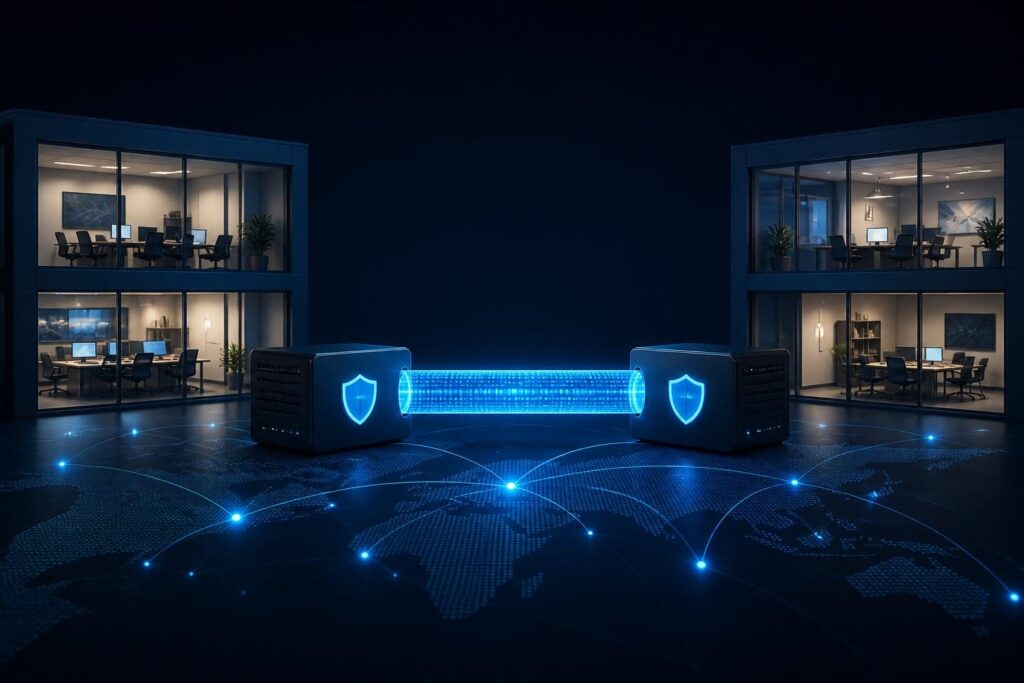
When a branch office cannot reach shared applications, site to site VPN tunnel troubleshooting should follow a fixed order. Start with the two VPN endpoints, then verify authentication, encryption, routing, firewall policies, and subnet design.
A tunnel that will not establish often produces several symptoms at once. Logs may show failed negotiation, authentication errors, or timeouts. The remote network may also appear completely unreachable. Those clues matter, but changing several settings together can hide the original cause.
This guide focuses on common IPsec site-to-site VPN designs. Names vary between firewall vendors, so confirm each setting against the documentation for your devices. Keep a copy of the current configuration before making changes.
Record the scope before changing anything
First, define what “down” means. Is the tunnel absent from the status page, or does it show established while traffic fails? A negotiation failure requires a different path from a routing failure.
- Record both endpoint names, public IP addresses, and device locations.
- Note the local and remote protected networks, including prefix lengths.
- Capture the failure time and the exact log message.
- Identify whether the issue affects all traffic or one application.
- Save current VPN, routing, NAT, and firewall settings.
Check whether either internet connection changed recently. A provider may assign a new public address, or an upstream modem may begin performing NAT. These changes can prevent a peer from reaching the expected device.
For site to site VPN tunnel troubleshooting, evidence keeps the investigation focused. Google’s effective troubleshooting guidance also recommends collecting facts, testing one hypothesis at a time, and preserving useful observations.
Verify site-to-site VPN peer addresses
The peer address is the public address or hostname that one VPN endpoint uses to find the other. A correct pre-shared key cannot help if the device contacts the wrong destination.
Check both sides independently
Compare the configured peer address with the current public address at each site. If a hostname identifies a peer, confirm its current DNS result. Do not assume that a recently changed DNS record has reached every resolver.
- Confirm the WAN interface used by the VPN.
- Check whether the endpoint has a dynamic public address.
- Verify that a hostname resolves to the intended address.
- Look for double NAT between the firewall and the internet.
- Confirm that the VPN service listens on the expected WAN interface.
Basic reachability tests have limits. Many firewalls do not answer ping, and IPsec negotiation does not behave like a normal web connection. A failed ping alone does not prove that the peer is offline.
Instead, inspect the local device’s VPN logs. Look for outbound negotiation attempts and inbound responses. If one side sends requests while the other records nothing, investigate addressing, upstream filtering, NAT, and the selected interface.
Check authentication and identity settings
After peer addresses, review authentication. Site-to-site VPNs commonly use a pre-shared key or certificates. Both endpoints must agree on the credential and the identity presented during negotiation.
For a pre-shared key, compare the value carefully without placing it in chat, tickets, or screenshots. A hidden character, different capitalization, or accidental space can cause failure. If the key recently changed, verify that both devices received the change.
Certificate-based VPNs need additional checks. Confirm that the certificate is valid, trusted by the other endpoint, and assigned to the correct VPN service. Check the certificate subject, subject alternative name, usage, and expiration date.
- Check local and remote identity types.
- Verify whether each side expects an IP address, hostname, or certificate identity.
- Review certificate trust chains when certificates are in use.
- Confirm that device clocks are accurate.
- Read the log for “authentication failed,” “no proposal,” or identity errors.
Authentication errors usually point to credentials, identity, certificates, or time. Avoid changing encryption proposals at this stage unless the log connects the failure to negotiation settings.
Compare site-to-site VPN encryption settings
VPN endpoints negotiate a shared set of cryptographic parameters. These settings protect the tunnel, but they must match closely enough for both devices to agree.
Review the phase names used by your platform. Many IPsec implementations have an initial control exchange and a later exchange that creates protected traffic selectors. Vendors may label these phases differently.
- Review the IKE version.
- Check the encryption algorithm.
- Confirm the integrity or authentication algorithm.
- Verify the Diffie-Hellman group or key exchange group.
- Check lifetime values where the platform requires compatible values.
- Review perfect forward secrecy on both sides.
- Confirm local and remote traffic selectors.
A “no proposal chosen” message commonly means the devices share no acceptable proposal. A phase-two or traffic-selector error can indicate that the protected networks do not match.
Use the strongest compatible settings supported by both devices. Do not weaken encryption broadly just to make a tunnel connect. If you must test a proposal change, schedule it, record the previous value, and keep a rollback plan.
Check site-to-site VPN routing and protected networks
A tunnel can establish while traffic still fails because the devices do not know which networks belong inside it. Routing decides where packets travel. Traffic selectors define which packets the VPN protects.
Confirm the local network on each side. For example, one office might use 10.20.0.0/24, while another uses 10.30.0.0/24. The exact prefixes must match the real network design and VPN configuration.
- Check that each firewall has a route for the remote protected network.
- Confirm that the route points to the VPN interface or policy-based tunnel.
- Verify that internal hosts use the correct firewall as their gateway.
- Check return routes on servers and routers at the remote site.
- Test a known host on each side, not only the firewall interfaces.
Route-based VPNs often use a tunnel interface and ordinary routing entries. Policy-based VPNs may select traffic through encryption domains instead. Do not apply route-based instructions to a policy-based design without checking the platform.
Cloud and hosted networks can add another routing layer. Confirm that virtual network route tables, security groups, and host routes also know about the remote subnet.
Review firewall, NAT, and policy rules
Firewall policies control traffic before and after encryption. A tunnel may show as established while a rule blocks the application traffic that should use it.
Review policies in both directions. Permit only the required source networks, destination networks, protocols, and ports. Check the order of rules, because an earlier deny may match before the intended allow rule.
- Confirm that VPN-to-LAN traffic is allowed at the destination site.
- Confirm that LAN-to-VPN traffic is allowed at the source site.
- Review policies for the correct zones or interfaces.
- Check whether an implicit deny blocks unmatched traffic.
- Inspect logs for the source, destination, port, action, and rule identifier.
Examine NAT next. Internal traffic going across a site-to-site tunnel usually should not receive internet source NAT. An overly broad masquerade rule can change the source address and prevent the remote policy from matching.
Use a narrow test from one approved host to one approved destination. Record the result, then remove temporary rules. For a deeper method, see this guide on testing whether a firewall rule blocks network traffic safely.
NAT changes packet addresses as traffic crosses a router or firewall. Cloudflare’s NAT overview explains why that translation can affect routing and policy decisions.
Look for overlapping subnets
Overlapping subnets are a design conflict, not simply a missing firewall rule. If both offices use the same network, such as 192.168.1.0/24, a device cannot reliably distinguish a local host from a remote host with the same address range.
This problem often appears after a new office, merger, replacement router, or default home-office configuration. The VPN may negotiate successfully, yet traffic remains local because the destination appears to be on the local LAN.
Compare every relevant network, including guest, management, voice, server, and cloud segments. Do not compare only the main office LAN.
Choose a safe resolution
- Renumber one network when the business can schedule the work.
- Use a documented translation design when renumbering is impractical.
- Keep translated ranges unique and route them consistently.
- Test applications that embed IP addresses before approving the change.
Translation can complicate access controls, logging, discovery, and some applications. Treat it as a planned network change, not a quick checkbox.
Use a controlled test sequence
Once the settings look correct, test in layers. Start with the tunnel state. Then test a route, a host, and an application. This sequence separates negotiation from forwarding and service behavior.
- Bring the tunnel up from one side if it uses on-demand negotiation.
- Confirm that both endpoints report the same security association state.
- Test one host-to-host connection across the expected subnet.
- Check firewall logs and packet counters during that test.
- Test the required application port.
- Repeat from the opposite direction if business traffic is bidirectional.
Packet counters can provide valuable evidence. If encrypted traffic leaves one endpoint but no response returns, inspect the remote route, policy, host firewall, and return path. If counters remain at zero, the traffic may not match the tunnel selectors.
Document each change and its result. A network diagram and current device inventory make future site to site VPN tunnel troubleshooting faster. This network documentation guide covers the information worth keeping.
When to escalate the VPN issue
Escalate when logs remain unclear, a production change could disconnect a site, or the design includes cloud routing, multiple tunnels, dynamic peers, or overlapping networks. Preserve configurations, timestamps, relevant logs, and packet-test results.
A remote engineer can compare both endpoints, trace the route, review policies, and plan changes without guessing. Tech Rescue Ops LLC can help when site to site VPN tunnel troubleshooting requires coordinated access to firewalls, routers, servers, or cloud networks.