
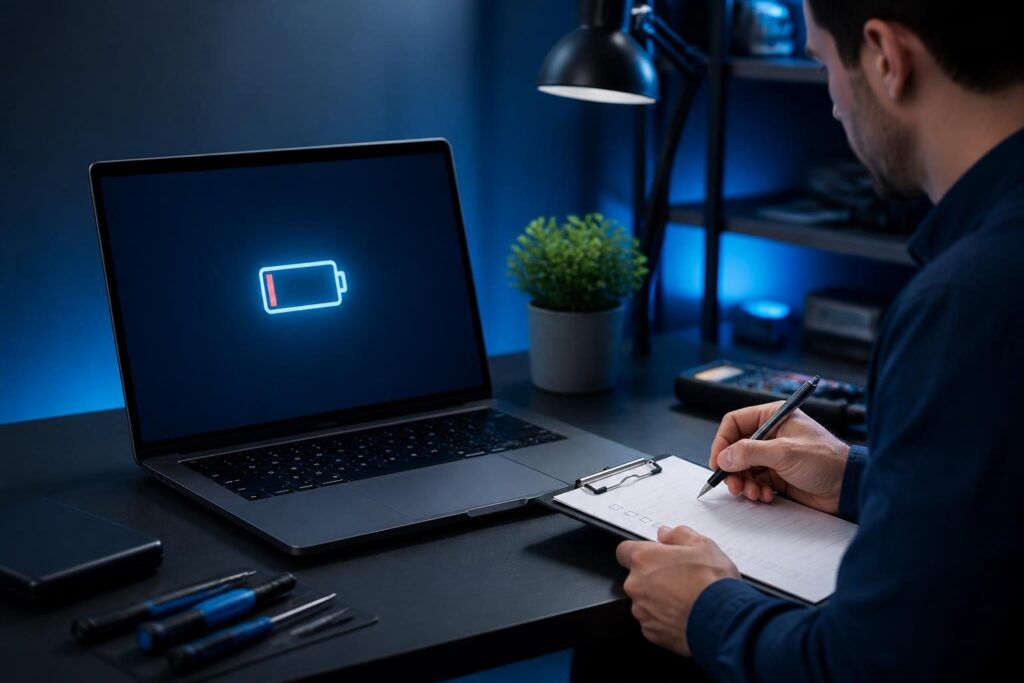
If your laptop loses charge much faster than expected, laptop battery draining quickly troubleshooting should begin with evidence rather than an immediate battery replacement. Battery age, high-power applications, heat, charging behavior, and hardware faults can produce similar symptoms.

This checklist helps you separate those causes. Work through the steps in order, record what you observe, and compare results under similar conditions. A short battery life during video editing is not the same problem as a battery that drops sharply while the laptop sits idle.
Start with a controlled battery test
First, describe the symptom precisely. Note the battery percentage, the time, the applications in use, the screen brightness, the network connection, and whether the laptop is sleeping or awake. Also record whether the percentage falls steadily or drops suddenly.
Disconnect unnecessary accessories, close active work, and restart the laptop once. Then use it for a repeatable period, such as 30 minutes, with ordinary tasks. Avoid comparing a quiet writing session with a demanding meeting, game, or video export.
- Test once while browsing or writing.
- Test again while the laptop is idle with the screen on.
- Note fan noise, unusual warmth, shutdowns, and percentage changes.
- Repeat the test after a full charge if the result seems unusual.
A controlled comparison makes laptop battery draining quickly troubleshooting more reliable. It can also reveal a reporting problem. For example, the displayed percentage may remain stable and then fall rapidly because the battery gauge needs recalibration. This simple baseline is an important part of laptop battery draining quickly troubleshooting.
Check battery health before replacing it
Battery capacity decreases with age and use. Health information usually compares the battery’s current full-charge capacity with its original design capacity. A lower capacity means the laptop stores less energy, even when the display says 100 percent.
Windows laptops may provide a battery report through built-in tools. The report can show design capacity, recent capacity, charge history, and usage periods. The exact steps vary by Windows version and manufacturer, so confirm the instructions for the installed system.
On macOS, open the battery settings and look for battery health information. macOS may show a condition such as normal or service recommended, along with cycle information on supported hardware. Manufacturer utilities can provide additional details on some business laptops.
Linux systems often expose battery information through desktop power tools or system files. Names and available fields differ between distributions and hardware. Do not treat one percentage as a complete diagnosis.
Interpret the results carefully
- Reduced capacity: The battery may simply have aged.
- Normal capacity: Look harder at applications, settings, charging, and heat.
- Sudden percentage changes: Consider gauge reporting, calibration, or a failing battery.
- Swelling or physical distortion: Stop using the laptop and arrange professional service.
Health readings are estimates, not laboratory measurements. Firmware, reporting errors, and vendor-specific thresholds can affect them. Still, they provide a useful starting point for laptop battery draining quickly troubleshooting.
Find applications using the most energy
Background work often explains fast drain. A browser with many active tabs, video conferencing, cloud synchronization, virtual machines, games, and development tools can keep the processor, graphics hardware, storage, or network active.
Windows Task Manager can show processor, memory, disk, and network activity. Use its Processes view while the battery is falling. Sort by CPU or power-related columns when available. The performance view can also show whether the system is working harder than expected.
macOS Activity Monitor provides CPU and energy views. Check applications with high energy impact and those preventing sleep. Linux desktop environments may show power usage, while tools such as top or ps can help identify busy processes. Command output differs by system, so avoid copying commands without understanding them.
Check the application itself before ending a process. Unsaved work may be lost, and security software or system services may briefly use resources for legitimate reasons. Close a known application normally, then observe whether drain and fan activity improve.
Browser extensions deserve attention. A single extension, tab, or web application can create sustained activity. Test with fewer tabs or a private window, while remembering that private browsing does not disable every type of extension on every browser.
Review power settings and display behavior
Power settings control performance, screen activity, sleep, and battery charging behavior. The high-performance profile may keep the processor at higher speeds. A bright display, keyboard lighting, cellular modem, or external monitor can also increase consumption.
- Choose a balanced or battery-saving mode for ordinary mobile work.
- Lower brightness to a comfortable level.
- Shorten the idle time before the display turns off.
- Confirm sleep or hibernation works when the lid closes.
- Disable Bluetooth, location, or cellular features when they are unnecessary.
- Disconnect unused USB devices and docks during testing.
Do not reduce every setting blindly. A short sleep timer may interrupt a presentation, and aggressive processor limits may affect required work. Apply one change at a time, then compare results.
External displays and docks can change power use significantly. A laptop driving a high-resolution monitor may use more energy than its internal display alone. This does not automatically indicate a fault.
Examine charging behavior
Charging problems can look like rapid battery drain. The laptop may show a charging symbol while receiving too little power, especially with an underpowered USB-C charger, damaged cable, loose connector, or incompatible dock.
Use the original charger when possible. Check its wattage and compare it with the laptop’s requirements. A phone charger may fit a USB-C port but lack enough power for the computer. Under load, the laptop might charge slowly, stop charging, or consume power faster than the adapter supplies it.
Inspect the cable, plug, port, and adapter for heat or damage. Do not use equipment with exposed conductors, a melted connector, a burning smell, or repeated electrical arcing. Test another known-compatible charger only when its voltage, connector, and power rating match the laptop’s requirements.
Some business laptops use charge limits to reduce long-term battery wear. A setting that stops charging at 80 percent may be intentional. Review the manufacturer’s power utility and firmware settings before assuming charging has failed.
Battery calibration can help when the displayed percentage does not match runtime. However, calibration does not restore lost capacity. Follow the laptop maker’s procedure, and avoid repeatedly deep-discharging a healthy battery without a clear reason.
Check heat, airflow, and hardware condition
Heat increases fan activity and can reduce efficiency. Blocked vents, dust, a soft surface, or a failing fan may force the laptop to work harder. Thermal throttling can also make tasks take longer, extending the period of high power use.
Use the laptop on a hard, clear surface. Confirm that vents are not covered. Listen for grinding or unusual fan sounds, and check whether the case becomes unusually hot during light work.
Hardware condition matters beyond the battery. A failing storage device, memory problem, damaged charging circuit, or swollen battery can create instability. Unexpected shutdowns, charging interruptions, burning smells, and physical expansion require caution.
Do not open a swollen battery or puncture its enclosure. Shut the laptop down if it is safe to do so, disconnect external power, and follow the manufacturer’s service or disposal guidance. Battery disposal rules vary by location.
Compare results and choose the next action
At this stage, create a short record. Include battery health, test duration, starting and ending percentages, active applications, charger details, temperature observations, and power settings.
| Finding | Likely direction | Next step |
|---|---|---|
| Capacity is substantially reduced | Battery wear | Check warranty and arrange a compatible replacement. |
| Capacity is normal but one app uses high energy | Software workload | Update, reconfigure, or isolate that application. |
| Drain occurs during sleep | Sleep, wake, or device activity | Review sleep settings, drivers, peripherals, and wake events. |
| Charging stops under load | Adapter, cable, dock, or charging circuit | Test compatible power equipment and seek service if needed. |
| Case is swollen or unusually hot | Safety or hardware concern | Stop using it and arrange qualified inspection. |
This comparison prevents a common mistake: replacing the battery when an application or charger causes the real problem. It also creates useful evidence if the laptop needs warranty service.
When to request professional help
Seek assistance when the battery swells, the laptop shuts down unexpectedly, charging remains unreliable, or health readings conflict with real runtime. A technician can inspect hardware, firmware, power logs, and compatible replacement options without guessing.
For a business laptop, preserve work before testing. Save open documents, record the device model and serial information, and avoid unsafe battery handling. Tech Rescue Ops LLC’s remote technical support can help with software, power settings, and application behavior. Physical battery replacement still requires an appropriate local or manufacturer service path.
If the laptop also restarts unexpectedly, compare symptoms with this Windows restart diagnostic guide before assuming the battery caused both issues.
For a broader troubleshooting method, see Google’s Effective Troubleshooting guidance. Its emphasis on evidence and hypothesis testing also fits laptop power problems.
Use laptop battery draining quickly troubleshooting to identify the cause before buying parts. A measured test often shows whether the next step involves software, settings, charging equipment, cooling, or the battery itself.