
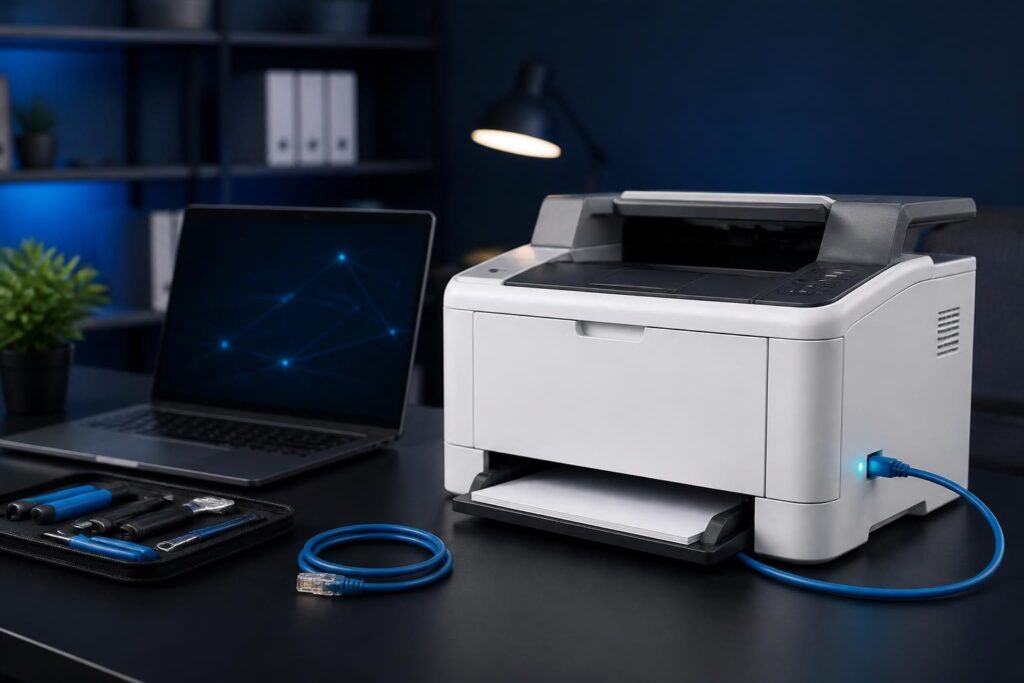
A printer that will not print can fail at several different layers. Network printer troubleshooting for small business works best when you separate the physical device, IP addressing, print queue, driver, and network connection instead of changing everything at once.
Start with evidence. Record the printer model, location, affected computers, exact error message, and time the problem began. Also note whether the printer shows an error on its own display. This information prevents guesswork and helps you reverse an unsafe change.
Begin with the printer itself
First, check the simplest explanation: the printer may not be ready. Confirm that it has power and that its display shows a normal ready state. Look for paper, toner, ink, open doors, paper jams, and maintenance alerts.
Next, print a configuration or network status page from the printer’s menu. The menu name varies by manufacturer. This page often shows the current IP address, connection type, hostname, and link status. Keep a copy because it provides useful evidence later.
- Check that the printer is connected to the intended wired or wireless network.
- Confirm that an Ethernet cable is fully seated at both ends.
- For Wi-Fi models, check signal strength and the connected network name.
- Look for an offline, sleep, error, or paused state.
- Restart the printer only after recording its current status.
A restart can clear a temporary device fault, but it does not repair a wrong IP address or a broken driver. If the printer cannot print its own internal test page, focus on the device before investigating Windows or the network.
Check the printer’s IP address
An IP address identifies a device on an IP network. A computer can still display a printer icon even when that icon points to an old address. This commonly happens after a router replacement, DHCP change, or printer reset.
Compare the address on the printer’s configuration page with the address configured on the affected computer. Avoid assuming that the printer name proves the address is current. The name may refer to a stale record or an old print port.
Test reachability carefully
From a computer on the same network, open a command prompt or terminal and test the printer’s current address. A ping test can provide a useful signal, but some printers ignore ping requests. A failed ping therefore does not prove that printing cannot work.
Open the printer’s web management page by entering its address in a browser, if the device offers one. A page that loads confirms basic IP reachability. It does not confirm that the print service, queue, or driver works.
Check whether the address belongs to the same network as the computer. For example, a computer using one private address range may not reach a printer placed on a guest or isolated wireless network. VLANs are separate logical network segments, and firewall rules may control traffic between them.
Do not assign a new static address without checking the local addressing plan. A duplicate address can create unpredictable failures. If possible, use a DHCP reservation so the network consistently gives the printer the same address. A reservation ties one device to one address on the DHCP server.
Separate network connectivity from printing
Network printer troubleshooting for small business should test the path before changing the printer software. Try the printer from another computer on the same network. If every computer fails, suspect the printer, address, switch, wireless network, VLAN, or firewall. If only one computer fails, focus on that computer’s queue or driver.
Use this short isolation sequence:
- Confirm the computer has a working network connection.
- Confirm the computer and printer use the intended network.
- Open the printer’s web page or check its status from a known-good device.
- Test printing a configuration page directly from the printer.
- Try a small test document from a second computer.
Wireless conditions can change with distance, interference, access point settings, or roaming. A wired test can help separate wireless problems from printer problems. Do not move a business printer to another network without recording the change and checking access requirements.
For broader issues, compare this process with the layered approach in our network troubleshooting service guide. The same principle applies: identify which layer fails before applying a fix.
Inspect the print queue
A print queue holds documents waiting for the printer. One damaged or unavailable job can block later jobs. This creates the impression that the printer itself has failed.
Open the operating system’s printer settings and inspect the queue. Look for paused printing, offline mode, repeated jobs, authentication prompts, or documents stuck in an error state. Cancel only the affected jobs unless you understand the business impact of clearing the entire queue.
- Confirm that the correct printer is selected in the application.
- Remove duplicate printer entries with similar names.
- Check whether “Use Printer Offline” or a similar setting is enabled.
- Cancel a test job and send a small document again.
- Ask whether another user has exclusive access or has paused the queue.
If the queue will not clear, restart the print service only with appropriate permissions and a plan for active users. The service name and procedure vary by operating system. Avoid deleting spool files blindly because that can affect other queued documents.
Cloud-managed and server-based printers add another possible layer. A print server may be unavailable, or a policy may deploy an outdated queue. Check whether the printer works when added directly by its current address, but do this only after confirming the organization’s approved setup.
Check the driver and print port
A driver lets the operating system communicate with a particular printer model. A damaged, incompatible, or incorrectly selected driver can cause failed jobs even when the printer responds on the network.
Review the printer’s properties and identify the selected driver and port. The port should point to the correct address or approved print server. A queue that still uses an old address may show the printer as offline.
Before installing software, confirm the model and operating system. Download drivers only from a trusted manufacturer source or the organization’s software repository. Do not replace a working driver merely because a newer package exists.
Use a controlled driver test
Test with a basic document, such as one page of plain text. If plain text prints but graphics or complex documents fail, the issue may involve application settings, fonts, print language, or document processing.
If a driver change becomes necessary, record the original driver and port first. Remove or replace one component at a time. Then print a test page and verify expected features, such as duplex printing, trays, color, and scanning. A generic driver may restore basic output but may not support every device feature.
Build a repeatable diagnostic record
Network printer troubleshooting for small business becomes faster when technicians can see what changed. Record the printer’s model, serial or asset label, physical location, MAC address if available, IP address, DHCP reservation, queue name, driver, port, and network segment.
Also record the symptoms and test results. Useful entries include “internal test page succeeds,” “web page opens,” “second computer prints,” or “queue remains stuck.” These statements narrow the fault without claiming more than the test proves.
A simple record can prevent repeated rediscovery. The network documentation template for small business can help organize device and addressing details. Keep credentials out of ordinary notes, and restrict access to management information.
For a wider computer-side problem, consult small business computer troubleshooting guidance. When the problem involves evidence collection, Google’s effective troubleshooting guidance also recommends testing specific hypotheses instead of making unrelated changes.
When to escalate the printer problem
Escalate when the printer repeatedly loses its address, several devices cannot reach it, the network design is unclear, or a queue depends on a server you do not control. Professional help also makes sense when printing affects payroll, shipping, patient records, legal documents, or other time-sensitive work.
For complex environments, network printer troubleshooting for small business should include the printer model, error messages, configuration page, current IP address, affected users, and the results of each test. Tech Rescue Ops LLC can use that evidence to separate device, addressing, queue, driver, and connectivity faults without treating every failure as the same problem.