
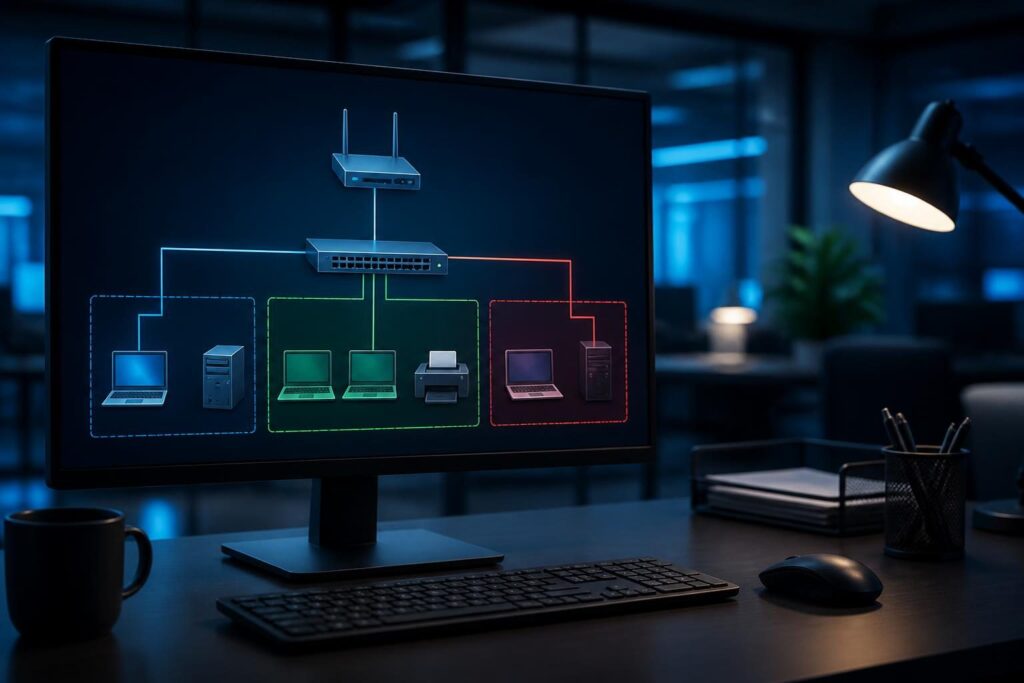
When two business devices cannot reach each other, subnet mask misconfiguration troubleshooting should be part of the first diagnostic pass. The devices may have valid IP addresses, working cables, and a reachable internet connection. However, an incorrect mask can make a local device treat a nearby address as remote, or treat a remote network as local.
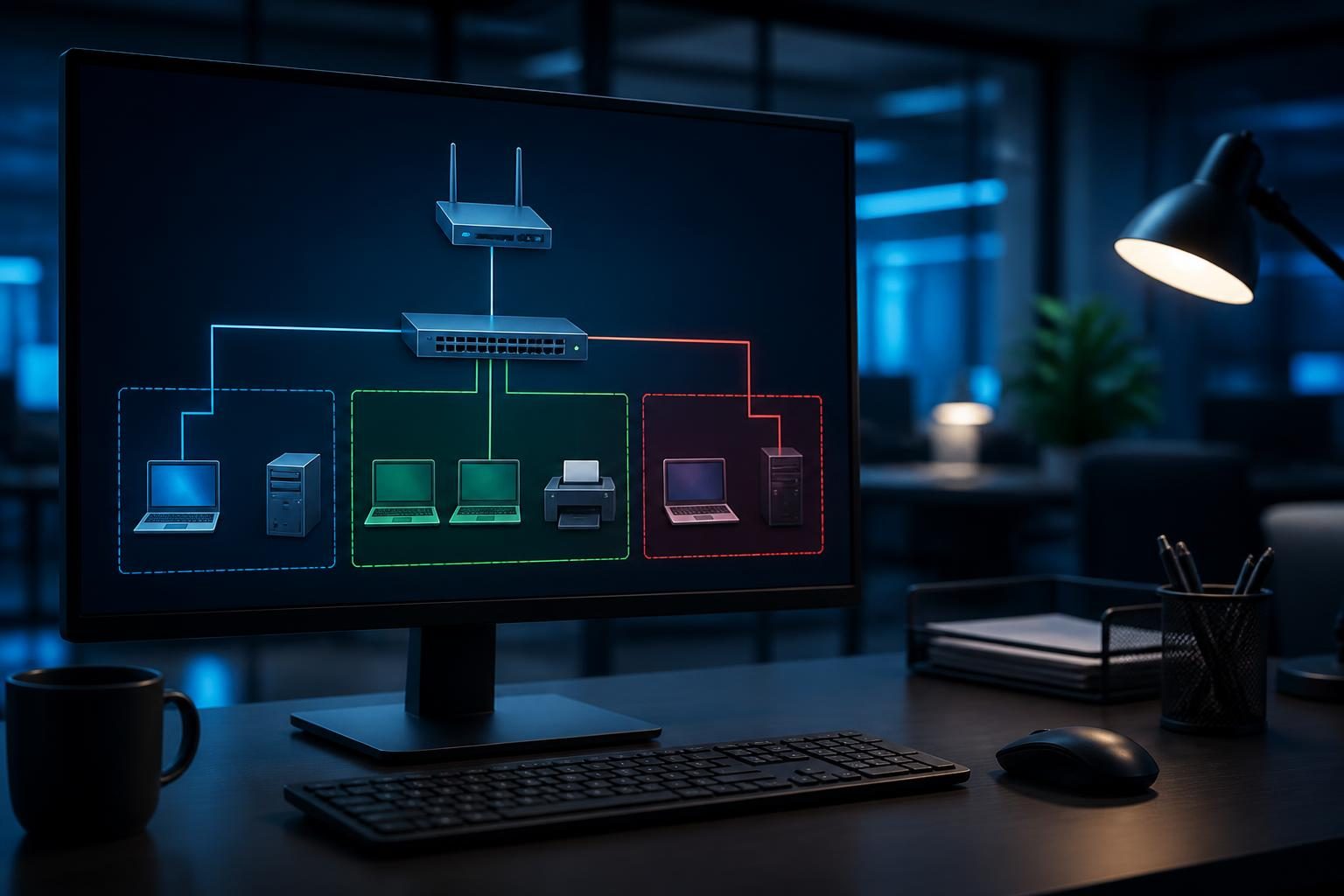
Subnetting determines which IP addresses belong to the same local network. A subnet mask is the boundary that separates the network portion from the device portion of an address. If that boundary differs between devices, communication can fail before traffic reaches a router or firewall.
This guide explains a safe way to check masks, default gateways, DHCP scopes, overlapping address ranges, and VLAN segmentation. It also shows why a device may reach some resources while failing to reach others.
What the subnet mask controls
Consider a computer using 192.168.10.25 with the mask 255.255.255.0, also written as /24. In that common arrangement, addresses from 192.168.10.1 through 192.168.10.254 belong to the same local subnet.
A device on 192.168.10.40/24 normally considers 192.168.10.25 local. It tries to find the other device through local address resolution, rather than sending the traffic to its default gateway.
Now change the first device to 192.168.10.25/25. Its local range becomes narrower. Depending on the address, two devices that appear to share the same network number may no longer agree about whether they are local.
That disagreement creates confusing symptoms. One computer may ping the gateway but not a server. A printer may appear online for some users but not others. File sharing may work in one direction only, especially when routing and firewall rules add another layer.
Subnet mask troubleshooting starts with a complete addressing record
Do not change settings immediately. First collect the address, mask, gateway, and DNS information from both affected devices. Record the connection type, VLAN or wireless network name, and the time of the failure.
- Windows: run
ipconfig /allin Command Prompt. - macOS: inspect the active interface in Network settings or use the relevant network command.
- Linux: use
ip addressandip routefor the active interface. - Network equipment: check the DHCP lease, interface, VLAN, and address pool in the management system.
Compare the results side by side. Look for an address outside the expected range, a mask that differs from nearby devices, or a gateway that does not belong to the local subnet. Also check whether one device has a manually assigned address while the rest use DHCP.
A computer with an address such as 169.254.x.x usually failed to obtain a normal DHCP lease. That issue deserves separate attention. Review DHCP troubleshooting for a business network before changing masks manually.
Run subnet mask misconfiguration troubleshooting in a controlled order
Layered checks prevent a successful internet test from hiding a local addressing problem. Use a known-good device on the same switch or wireless network as a comparison.
- Confirm the affected device has the expected IP address and mask.
- Check the local TCP/IP stack using the loopback address,
127.0.0.1. - Check the device’s own assigned address.
- Next, check the default gateway.
- Compare results with a nearby known-good host on the same subnet.
- Then check a host on another subnet, if routing should allow it.
- Finally, check a name as well as an IP address after basic connectivity works.
Interpret the results carefully. Failure to reach the gateway can indicate a wrong mask, wrong VLAN, bad local configuration, wireless isolation, a switch issue, or a gateway problem. Reaching the gateway but not another local host may point to host firewalls, client isolation, an incorrect host mask, or an address conflict.
For a duplicate-address possibility, compare the affected device’s ARP information with switch data. The guide to duplicate IP address conflicts on a business network covers that investigation without assuming the mask is the cause.
Check default gateways and routing boundaries
The default gateway is the router a device uses when the destination is outside its local subnet. A gateway does not repair an incorrect mask. In fact, the mask decides whether the device uses the gateway at all.
For example, suppose an office computer uses 10.20.30.50/24, while a server uses 10.20.31.20/24. Those devices are on different subnets. They need a router, correct routes, and security rules that permit the required traffic.
If the computer incorrectly uses 10.20.30.50/16, it may believe the server is local because both addresses appear inside the larger 10.20.0.0/16 range. The computer may then try local address resolution instead of sending traffic to the router. That can produce a timeout even when inter-network routing is correctly configured.
Conversely, a mask that is too narrow can make a device send local traffic to the gateway. The router may not have a suitable route, or a firewall may block the unnecessary routed path. This is a common point for subnet mask misconfiguration troubleshooting.
Inspect the route table when the mask appears correct but behavior remains inconsistent. Avoid changing static routes unless you understand the intended design. Routing, NAT, and firewall layers can interact; Cloudflare’s overview of NAT explains how address translation can affect traffic flow.
Find DHCP scope and static address conflicts
DHCP automatically supplies addresses and related settings. A DHCP scope is the pool of addresses available to clients, along with options such as the subnet mask, gateway, and DNS servers.
A scope mismatch often follows a network change. For example, an office may move from 192.168.1.0/24 to 192.168.10.0/24, but an old router continues answering DHCP requests. Some clients receive the new settings while others receive the old ones.
Another risk appears when a static device uses an address inside the DHCP pool. The DHCP server may later lease that same address to another client. This produces intermittent access and may resemble a mask problem.
- Identify every device that can provide DHCP, including routers, firewalls, servers, and wireless appliances.
- Confirm the active scope matches the intended subnet and VLAN.
- Check that the gateway option points to the correct interface.
- Reserve or exclude static addresses from the dynamic pool.
- Renew one test client after documenting its current settings.
Do not flush leases across the whole business as a first step. That can disconnect working devices and make evidence harder to interpret. Change one controlled client, then compare its result with a known-good lease.
Look for overlapping address ranges
Overlapping ranges occur when two networks use address space that is not distinct. This commonly happens after adding a VPN, connecting branch offices, replacing a router, or using the same private range at home and at work.
Suppose the office uses 192.168.1.0/24 and a remote worker’s home network uses the same range. A VPN client may connect successfully, yet the computer cannot reliably decide whether 192.168.1.50 is local or remote.
Similar confusion can happen between a guest network, management network, and production network if their masks are too broad. A design that uses separate VLANs still needs distinct IP subnets. VLANs separate Layer 2 traffic; the IP plan must preserve that separation at Layer 3.
List every internal range, VPN pool, guest range, and cloud-connected network. Compare them in one document. The small business network documentation template can help keep those details visible during future changes.
Check segmentation and VLAN assignments
Segmentation intentionally places devices into separate networks. A staff computer may sit on one VLAN, phones on another, and guest wireless clients on a third. Devices in separate VLANs usually need routing and explicit policy permission to communicate.
A segmentation error can look like a mask error. A laptop might receive the correct address for the staff subnet but connect through a switch port assigned to the wrong VLAN. An access point might broadcast the right wireless name while mapping it to the wrong tagged network.
Check the switch port, wireless network mapping, trunk configuration, and firewall interface. Confirm that DHCP requests reach the intended scope. Then check access to the gateway for that specific VLAN.
Do not solve an intentional isolation policy by widening masks. That can expose systems that the design meant to protect. If a printer or server must be shared, create the narrowest required rule and verify it from both network segments.
Safe corrections and verification
Before correcting a mask or gateway, export the current configuration and document the expected values. Confirm the intended subnet with the person responsible for the network. A change that fixes one device can create a larger outage if the design assumption is wrong.
For a DHCP-managed client, correct the scope or reservation rather than manually forcing a setting. For a static device, update the address, mask, gateway, and DNS together when appropriate. Check for dependencies such as printers, cameras, phones, servers, firewall rules, and monitoring systems.
After the change, renew or reconnect one test device. Repeat the layered checks: gateway, same-subnet host, routed host, application port, and name resolution. Check from both directions where the application requires two-way communication.
Use subnet mask misconfiguration troubleshooting to document the final address plan and the reason for the correction. Structured evidence and hypothesis testing make future diagnosis faster; Google’s effective troubleshooting guidance offers a useful general method.
When to request technical help
Subnet mask misconfiguration troubleshooting is usually manageable when the network has one router and a documented address plan. It becomes riskier when several DHCP services, VLANs, VPNs, firewalls, or overlapping sites are involved.
Tech Rescue Ops LLC can review device settings, leases, routes, VLAN mappings, and firewall evidence through remote technical support. Professional help is appropriate when you cannot identify the authoritative configuration, when changes could interrupt business services, or when symptoms remain inconsistent after the addressing data matches.