
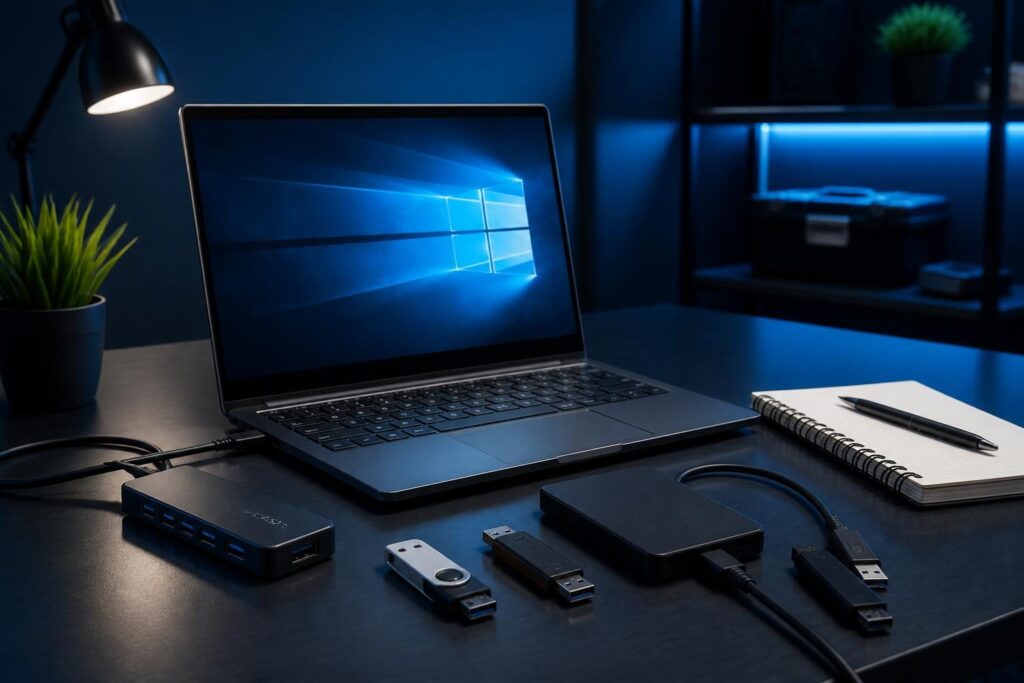
When a Windows computer not detecting USB device troubleshooting problem appears, avoid replacing hardware immediately. The failure may involve the device, cable, port, power supply, driver, or Windows configuration.

This guide uses evidence instead of guesswork. You will test one variable at a time, record what Windows reports, and stop before a change could risk data. The same method works for USB drives, keyboards, mice, printers, cameras, headsets, and other peripherals.
Start with safe observations
First, describe the failure precisely. Does the device show no lights, appear briefly, make a Windows connection sound, or work but fail to transfer data? These differences point toward different causes.
- Save open work before disconnecting equipment.
- Do not unplug a storage device while it is writing data.
- Note the device type, manufacturer, cable type, and when the problem began.
- Record any notification, error code, or sound from Windows.
- Ask whether the device worked on this computer before.
Next, restart the computer normally. A restart can clear a temporary USB controller or driver state. However, treat that result as evidence, not a permanent fix. Google’s effective troubleshooting guidance also recommends collecting evidence and testing clear hypotheses.
Check the physical connection without forcing it. Look for bent contacts, looseness, contamination, damaged insulation, or a cable that only works at one angle. Do not spray liquid into a port. If a port feels hot, smells burned, or shows visible damage, stop using it.
Use hardware isolation to identify the failing part
Hardware isolation means changing one part of the setup while keeping the others constant. This is the fastest way to separate a failed port from a failed accessory. A careful Windows computer not detecting USB device troubleshooting process depends on this one-variable approach.
Test the device, cable, and port separately
- Connect the same device to a different USB port on the computer.
- Try a known-good cable if the device uses a removable cable.
- Test the device on another computer, if one is available.
- Connect a simple known-working device, such as a basic mouse, to the original port.
- Remove hubs, docks, extension leads, and adapters during testing.
Interpret the pattern carefully. Several known-good devices failing on one port points toward the port or its controller. One device failing everywhere points toward the device or cable. A device working directly but not through a hub points toward the hub, its power, or compatibility.
Front-panel desktop ports can fail while rear motherboard ports still work. Laptop ports may share an internal controller, so one physical failure can affect more than one connector. A device that needs substantial power may also work on one port but fail on another.
For storage devices, do not format or initialize the disk simply because File Explorer does not show it. Those actions can destroy access to existing data. Check whether the drive appears in Disk Management, and consider professional recovery help if the data matters.
Check USB power and hubs
USB devices receive power from the computer, an external adapter, or both. A weak connection can allow a device to light up but still fail during startup or data transfer.
Disconnect unnecessary USB equipment. Then connect the affected device directly to the computer. Powered hubs and docks should use their correct adapter. A hub that works with a mouse may still fail with a bus-powered hard drive or another high-demand device.
Look for a pattern after the computer wakes from sleep. Power-management settings can suspend a USB hub or controller. To test this, change only the relevant setting, restart if Windows requests it, and retest. Record the original value before changing anything.
On a business computer, avoid disabling power features across every USB device without a reason. Those settings can affect battery life, sleep behavior, and device stability. If the problem affects many ports, collect evidence before applying broad changes.
Inspect Device Manager for driver evidence
Device Manager shows how Windows identifies hardware and whether a driver reports a problem. A driver is software that lets Windows communicate with a hardware component.
- Right-click the Start button and open Device Manager.
- Expand Universal Serial Bus controllers.
- Also inspect Disk drives, Portable Devices, Keyboards, Mice and other pointing devices, or the device’s likely category.
- Look for a yellow warning icon, an unknown device, or a device that appears only during connection.
- Open the device’s properties and read the Device status message.
Write down the exact code and message. Codes can indicate that Windows stopped a device, could not start it, lacks a suitable driver, or detected a resource problem. The code does not prove that the driver is the only cause. A damaged device can produce similar evidence.
Use the Events tab when available. Entries such as device configuration, migration, start, or removal can show whether Windows noticed the connection. Compare the timestamp with your test. This creates a useful timeline.
In Device Manager, choose View and enable Show hidden devices only when needed. Old, disconnected entries can add confusion. Do not remove every greyed-out item as a routine cleanup step.
Refresh drivers without creating new risk
Start with the computer manufacturer’s support page or the device manufacturer’s documented source. Match the driver to the exact Windows edition and computer model. Avoid random driver-download sites and bundled installers.
If the issue began after a driver or Windows change, review that timing. Device Manager may offer Roll Back Driver, but the option may not exist. A rollback can help when the previous driver is still available, yet it should follow evidence.
You can also use Device Manager to uninstall a problematic device, then restart Windows so it can detect the hardware again. Read the prompt carefully. Do not select an option to remove driver software unless you have confirmed that you can reinstall the correct driver.
Windows Update may provide hardware drivers, but it is not the only source. Some docks, printers, storage controllers, and specialized devices require vendor software. Check the manufacturer’s instructions before installing firmware or chipset packages.
Separate Windows software from hardware failure
A device working on another computer leaves Windows or the local hardware as the leading suspect. A device failing on multiple computers makes the device or cable more likely. This comparison is central to Windows computer not detecting USB device troubleshooting.
For a deeper test, use a clean boot or a separate Windows user profile. These tests can reveal interference from security software, device utilities, synchronization tools, or startup applications. Make one change at a time and document how to undo it.
Safe Mode can help with some driver conflicts, but USB behavior may differ because Windows loads fewer drivers. Therefore, a device that fails in Safe Mode does not automatically prove hardware failure.
Check whether the device appears in a lower-level location. A USB storage device might appear in Disk Management even when it is missing from File Explorer. A printer may appear in Windows settings but fail through its print software. Each layer provides different evidence.
When the port or device likely needs replacement
A port is more suspect when several known-good devices fail there, the connector is physically loose, or Windows never records a connection. A device is more suspect when it fails on different computers with different cables and power sources.
Still, intermittent results deserve caution. Damaged cables can work at low power but fail during transfers. Failing storage devices may disconnect under load. Docks can hide several separate faults behind one connection.
For company equipment, record the asset, port, device, cable, test computer, Windows message, and result. This prevents repeated trial-and-error and gives a technician enough information to act safely.
A concise USB troubleshooting checklist
- Protect open work and avoid unsafe removal of storage.
- Record the exact symptom and Windows message.
- Test another port, cable, computer, and known-good device.
- Remove hubs and docks from the first test.
- Check power, adapters, and unusual heat or damage.
- Review Device Manager status and event evidence.
- Install or roll back drivers only from trusted sources.
- Do not format storage before confirming that data is backed up.
- Document each result before changing the next variable.
Treat Windows computer not detecting USB device troubleshooting as a repeatable process rather than a reason to replace parts immediately.
For related evidence-first Windows diagnosis, see our guides on unexpected computer restarts and computer freezing symptoms. These problems can share driver, power, and hardware causes.
If testing points to a failed port, damaged device, firmware issue, or driver conflict that affects business work, Tech Rescue Ops LLC can help with remote evidence collection and a safe next-step plan. Physical repairs and data recovery may still require local hands-on service.