
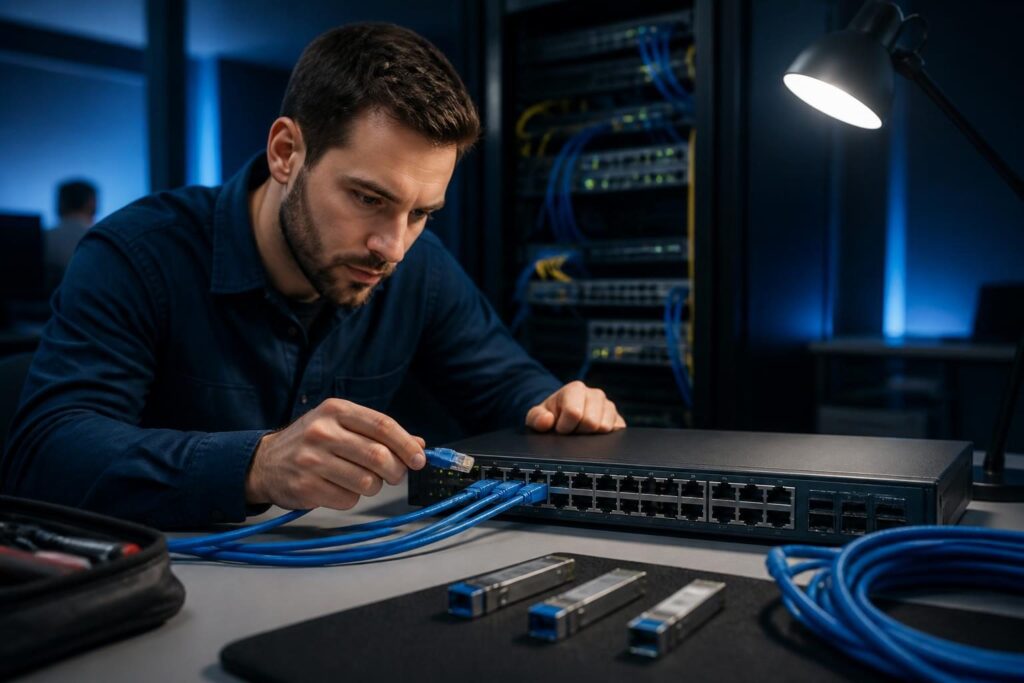
When a wired connection drops and returns without a clear pattern, Ethernet link negotiation intermittent troubleshooting should begin at the physical link. A device may still appear powered on, yet its network interface can repeatedly renegotiate speed or lose carrier. That behavior can interrupt file access, VoIP calls, remote sessions, and business applications.

Ethernet negotiation is the process through which two connected interfaces agree on speed and duplex. Duplex describes whether both sides can transmit at the same time. Modern equipment usually handles this automatically, but damaged cables, incompatible optics, forced settings, and power-saving features can create unstable links.
Recognize a negotiation problem
First, separate a link problem from a higher-layer network problem. A negotiation fault usually affects the interface itself. The operating system may report that the cable is unplugged, the switch may record link-down and link-up events, or the interface may show a changing speed.
- Link lights blink off briefly, then return.
- The switch reports repeated carrier changes or “flapping.”
- A port negotiates at 100 Mbps instead of 1 Gbps, or changes speed over time.
- Errors, CRC faults, late collisions, or alignment errors increase.
- A phone, access point, or workstation disconnects while nearby devices remain stable.
- Large transfers fail more often than short web requests.
Keep a timeline. Note the device, switch port, cable path, observed speed, and exact times. If the issue affects only one connection, start locally. If several ports fail together, examine power, uplinks, or a broader switching problem instead.
For a structured method, compare your evidence collection with Google’s troubleshooting guidance. Avoid changing several variables at once. Each controlled test should answer one question.
Inspect the cable and physical path
Copper cabling is the most common starting point because small physical defects can produce intermittent symptoms. Look for sharply bent cable, crushed sections, loose plugs, damaged latch clips, and poorly terminated wall jacks. Check both ends, including patch panels and short patch leads.
Replacement testing is a core part of Ethernet link negotiation intermittent troubleshooting. Replace the patch cable with a known-good cable of the correct category. Do not assume that a cable works because its link light appears. A marginal pair can support a lower speed while failing at a higher one. A certified cable tester can check wire mapping, pair faults, length, and some performance characteristics.
Next, bypass unnecessary components. Connect the endpoint to a nearby known-good switch port with a short test cable. This does not prove the permanent cable run is sound, but it helps divide the problem into endpoint, patching, and structured cabling.
Use replacement testing carefully
Replacement testing works best when you change one item at a time. Record the original port and cable before moving anything. Then test the same endpoint with a known-good cable. If the fault follows the cable, replace the cable. If it remains at the endpoint, test another switch port.
Do not move a critical uplink or production device casually. A spare port may use a different VLAN, security policy, or speed profile. Confirm the port’s configuration before drawing conclusions. The related switch port troubleshooting guide covers safe checks for interface state, VLAN settings, and logs.
Check speed and duplex agreement
Both ends of a copper link should normally use auto-negotiation together. A forced speed or duplex setting on one side can produce a mismatch. For example, one interface may run full duplex while the other uses half duplex. The link may remain usable, but collisions, retransmissions, and poor performance can follow.
Review the negotiated values on the endpoint and the switch. Compare:
- Administrative setting: automatic or manually forced.
- Operational speed: the value currently in use.
- Operational duplex: full or half duplex.
- Advertised capabilities: the modes each side offers.
- Interface counters: errors, drops, collisions, and resets.
A mismatch often appears as poor throughput rather than a complete outage. During Ethernet link negotiation intermittent troubleshooting, compare the negotiated speed with the device’s expected capability when a transfer becomes slow. Our guide to slow network file transfer troubleshooting provides useful context for separating link speed from storage and protocol limits.
As a general repair, return both compatible ends to auto-negotiation when the equipment supports it. However, verify the manufacturer’s guidance first. Some fiber modules, legacy devices, and special-purpose links require a defined configuration. Never force a value merely because it appears to stop the symptoms temporarily.
Investigate transceivers and fiber links
Fiber connections add another compatibility layer. A transceiver, often called an optic or SFP, must match the switch and the cable plant. Check the module type, fiber mode, connector, reach, wavelength, and supported speed. A single-mode optic and multimode path are not interchangeable simply because their connectors fit.
Review switch logs for unsupported-transceiver messages, loss of signal, high temperature, or repeated module resets. Check whether both ends use compatible optics. Vendor coding can also matter. A module that physically fits may not be accepted by the platform, or it may operate with limited support.
Clean fiber connectors with the proper tools and procedures. Avoid touching connector faces. Inspect the patch path for tight bends, tension, or damaged couplers. If possible, test with a known-good matched pair of transceivers and a short known-good fiber patch. Keep the original modules labeled so the test remains reversible.
Read port counters and event logs
Interface counters turn a vague complaint into evidence. Capture counters before and after a failure window. Pay attention to CRC errors, input errors, alignment errors, symbol errors, runts, giants, collisions, discards, and link resets. The exact names differ by switch vendor.
CRC and alignment errors often suggest corrupted frames. Cabling, connectors, electromagnetic interference, or a failing interface may contribute. Collisions and duplex-related counters point toward a configuration mismatch, especially on older Ethernet equipment. Drops may instead indicate congestion or buffering, so do not treat every counter as proof of a physical defect.
Compare the endpoint’s event log with the switch timestamp. When both record a link transition at the same moment, the physical or interface layer deserves priority. When the endpoint stays linked while applications fail, investigate VLANs, routing, DNS, or the application separately.
Resetting counters can help isolate a short test, but preserve the original evidence first. Export logs or record values before clearing anything. A counter reset can remove useful history and may complicate later analysis.
Review power-saving and driver behavior
Power management can suspend or reconfigure a network interface. Endpoint operating systems may enable energy-efficient Ethernet, green Ethernet, selective suspend, or adapter power-down settings. Docking stations and USB Ethernet adapters can add another power-management layer.
Check the endpoint’s adapter properties, operating system power plan, firmware, and driver version. Look for events that coincide with sleep, wake, docking, screen lock, or battery changes. A desktop that loses its link during idle periods may have a different cause from a workstation that fails during large transfers.
Test one setting at a time, and record the original value. Disabling a power-saving feature can increase energy use and may not be appropriate for every device. If a driver update is involved, verify compatibility with the operating system and hardware. Avoid downloading drivers from unofficial sources.
Build a controlled replacement test
Once you have baseline evidence, create a small test matrix. This Ethernet link negotiation intermittent troubleshooting sequence changes only one element per test:
- Known-good patch cable on the original port.
- Original cable on a known-good port.
- Known-good endpoint on the original cable and port.
- Known-good endpoint, cable, and port.
- For fiber, matched known-good optics and a short compatible patch.
After each change, observe link status, negotiated speed, counters, and logs. Reproduce the workload that normally exposes the problem. A short test that passes does not prove the fault is gone, so define an observation period appropriate to the business impact.
If the fault follows the endpoint, inspect its NIC, driver, dock, or power state. A fault that follows the port points toward the switch interface or configuration. For a cable-path fault, test the permanent run. If no component appears to follow the problem, consider environmental interference, timing, or a fault outside the Ethernet link.
Prevent repeat link failures
Label both ends of important cables and record switch port assignments. Keep spare cables and compatible optics available. Store the expected speed, duplex mode, VLAN, and device location in network documentation.
Review interface logs after maintenance. Trend errors instead of waiting for a complete outage. Also, avoid mixing unsupported optics or unknown-quality patch leads into critical uplinks. A clean replacement process reduces guesswork during an incident.
For a broader view of transmission faults, see our business network packet loss troubleshooting guide. Packet loss can resemble negotiation trouble, but the evidence often points to different layers.
When to escalate the investigation
Escalate when a link remains unstable after controlled cable and port tests, when errors rise rapidly, or when an uplink affects multiple devices. A technician may need switch diagnostics, fiber power measurements, cable certification, hardware replacement, or vendor support.
Tech Rescue Ops LLC can help collect remote evidence, compare endpoint and switch behavior, and plan a safe replacement test. Professional assistance is especially useful when the affected link supports phones, servers, security systems, or a critical uplink. This Ethernet link negotiation intermittent troubleshooting work is a good candidate for remote assistance when local staff can safely perform approved cable and port tests.