
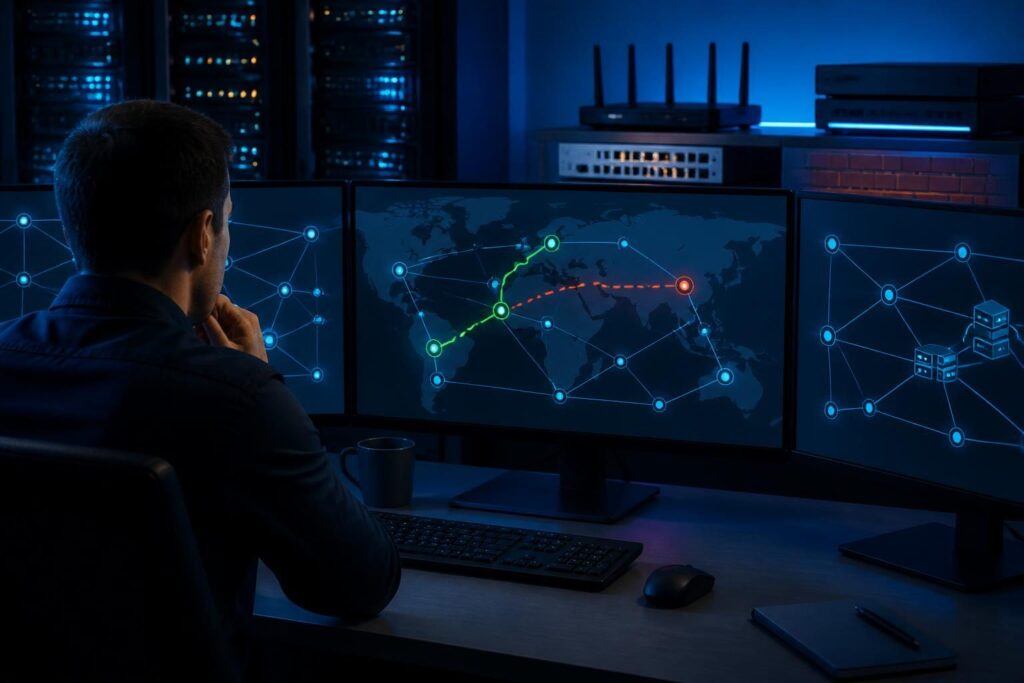
Network traffic takes wrong route troubleshooting starts with one important question: which device selected the path, and why? A route can exist in a table yet lose to a more specific route, a lower metric, a policy rule, or a competing interface.

This problem often looks like a firewall failure or an unreliable VPN. However, the packet may never reach the expected gateway. The safest approach is to capture the destination, inspect each routing decision, and test the path from the affected device.
Confirm what “wrong path” means
First, describe the expected and observed paths precisely. Record the source address, destination address, protocol, port, timestamp, and affected location. “The server is slow” does not identify a routing problem. “Traffic from 10.20.5.44 to 10.30.8.12 uses the internet gateway instead of the VPN gateway” gives you a testable statement.
Also check whether the issue affects every device or only one host. A single computer may have a stale route, a virtual adapter, or a local VPN client. If an entire subnet sees the same behavior, inspect the router, firewall, VPN, or Layer 3 switch serving that subnet.
- Compare a working source with a failing source.
- Test an IP address before testing a hostname.
- Note whether the path changes by destination, source network, or application.
- Save current settings before changing routes or policies.
Keep a short evidence log. Google’s effective troubleshooting guidance also emphasizes evidence, hypotheses, and controlled tests rather than guesswork.
Inspect the route table on the source
A route table lists destinations and the next hop used to reach them. The next hop is the router that receives the packet next. A default route, often written as 0.0.0.0/0 for IPv4, matches destinations without a more specific entry.
On Linux, useful commands include:
ip route
ip route get 10.30.8.12
ip rule show
ip route show table all
ip route get asks which route the operating system would use. If the source address matters, test with one where supported:
ip route get 10.30.8.12 from 10.20.5.44On Windows, review routes with:
route print
Get-NetRoute -AddressFamily IPv4
Test-NetConnection 10.30.8.12 -TraceRoute
Commands vary by operating system version and network design. Run them with appropriate permissions, and do not delete a route simply because it looks unfamiliar. Virtual machines, containers, VPNs, and endpoint security tools can add legitimate routes.
For a remote network, review the same information on the gateway or firewall. A host may correctly send traffic to its local router while that router chooses the wrong upstream path. The route decision must be checked at every Layer 3 hop. This source-to-gateway comparison is central to network traffic takes wrong route troubleshooting.
For broader assistance, the network troubleshooting service overview explains how remote evidence collection can support this work.
Compare route specificity and metrics
Routers generally prefer the longest prefix match. In simple terms, the most specific destination wins. A route for 10.30.8.0/24 normally beats a route for 10.30.0.0/16, which beats a default route.
This creates a common trap. An administrator adds a broad route for a remote office, but an older, narrower route sends part of that office’s addresses elsewhere. The expected route exists, yet it never wins for the affected destination.
When two routes have the same destination length, the device may compare administrative distance, preference, or metric. Names differ between vendors. The principle remains similar: the preferred route wins, even when another route appears valid.
- Compare the destination prefix, not only the gateway address.
- Look for duplicate or overlapping prefixes.
- Check route preference and metric values.
- Confirm that the next hop is reachable through the selected interface.
- Review whether the route is connected, static, learned, or temporary.
Do not assume that a lower numeric metric always means the same thing on every platform. Verify the device’s routing rules and documentation before changing values.
Find overlapping networks and incorrect masks
Overlapping networks occur when two interfaces, sites, or VPNs claim some of the same addresses. For example, a local office using 10.10.0.0/16 cannot cleanly reach a remote office using 10.10.20.0/24 if the local network already treats that range as directly connected.
The local device may believe the remote address is nearby. It then uses ARP, the local address-resolution process, instead of forwarding the packet to the VPN or router. No firewall rule can fix a destination that the source classifies incorrectly.
Review subnet masks on hosts, interfaces, DHCP scopes, VPN definitions, and cloud networks. A mistaken /16 where /24 was intended can produce this symptom. Check both IPv4 and IPv6 if the application supports both; an IPv6 path can appear to bypass an expected IPv4 control.
Long-term fixes may include renumbering one network, narrowing a mask, or using carefully designed translation. NAT, or network address translation, changes addresses as traffic crosses a device. The Cloudflare NAT overview explains why translation can affect how systems see a traffic flow.
Check asymmetric paths
Asymmetric routing means the outbound and return packets use different paths. Different paths are not automatically wrong. Problems arise when a stateful firewall, VPN, or security appliance expects both directions to cross the same device.
Suppose a client sends traffic through Firewall A, but the server’s reply returns through Firewall B. Firewall A may never see the response. It can then report a timeout, an incomplete session, or a blocked state. A VPN tunnel may also carry one direction while the return route follows a normal internet or private WAN path.
Test both directions. Run a trace from the client toward the server, then use a server-side trace toward the client where possible. Compare firewall session tables, interface counters, and packet captures. A capture on only one device can miss the return path.
Also inspect NAT and default gateways. A server with two interfaces may answer through the wrong interface if its route table lacks a suitable return route. Multi-homed hosts require deliberate routing, not just two connected cables.
Investigate policy-based routing
Policy-based routing, or PBR, selects a path using conditions beyond the destination. Those conditions may include source address, interface, user group, application, protocol, or firewall mark. PBR can intentionally send voice, guest, backup, or VPN traffic through different gateways.
On Linux, start with ip rule show. Rules can direct traffic into alternate routing tables. Then inspect every referenced table with ip route show table all. A route in the main table may be correct while an earlier policy rule sends the packet elsewhere.
Firewalls and managed routers often display PBR as a policy, traffic steering rule, SD-WAN decision, or gateway group. Review matching order, object definitions, and logging. Confirm whether the rule matches the real source address after NAT, a tunnel interface, or a VLAN interface.
Disable or modify policy only during an approved change window. A PBR rule may carry critical traffic, and a quick test can interrupt several services.
Test the packet path instead of guessing
Traceroute shows responding hops, but it does not prove that every hop handles the application in the same way. Some routers suppress or rate-limit traceroute responses. Combine path testing with route inspection and packet captures.
Use a destination IP first:
traceroute 10.30.8.12
tracepath 10.30.8.12
On Windows, use:
tracert 10.30.8.12
Test-NetConnection 10.30.8.12 -Port 443 -TraceRoute
Test the actual service where safe. A TCP connection to port 443 can behave differently from ICMP. For UDP applications, such as some voice services, packet captures and application logs may provide better evidence than a basic ping.
Compare paths from multiple points. A trace from the client, gateway, server, and remote site can reveal where the route changes. If the problem occurs only at certain times, record timestamps and correlate them with VPN reconnects, dynamic routing changes, or link failover.
For a repeatable workflow, see this remote network troubleshooting test plan. It can make network traffic takes wrong route troubleshooting more consistent across remote sites.
Use packet captures to identify the actual path
A packet capture records what entered or left an interface. Capture near the source, expected gateway, and suspected wrong gateway when possible. Filter by source and destination so the evidence remains readable.
- The source sends to an unexpected gateway or interface.
- No packet reaches the expected gateway.
- The packet reaches the server, but the response leaves another interface.
- TTL changes show that traffic crosses an unexpected router.
- ICMP redirects or repeated retransmissions suggest a path problem.
On Linux, tools such as tcpdump can capture traffic. Use a narrow filter and limit capture duration. On a firewall, built-in packet-trace tools may show route lookup, NAT, policy matching, and egress interface in one result.
Capture sensitive traffic carefully. Protect files that contain addresses, credentials in application payloads, or customer data. A qualified technician should review captures when the protocol or security impact is unclear.
Correct the cause and verify the return path
Once the cause is clear, choose the smallest change that restores the intended design. Possible fixes include removing a stale route, correcting a mask, changing a metric, narrowing an overlap, updating PBR, or adding a return route.
Document the previous state before editing. Apply one logical change at a time. Then repeat the same route lookup, traceroute, service test, and return-path check. Verify both successful traffic and unrelated services that use the same gateway.
Finally, monitor the route after the change. Dynamic routing, VPN reconnection, DHCP renewal, or failover may recreate the original behavior. Save the final configuration and record why the selected path is correct.
If network traffic takes wrong route troubleshooting involves overlapping sites, multiple firewalls, or production VPNs, professional remote assistance can reduce risk. Tech Rescue Ops LLC can help collect route evidence, test packet paths, and plan a controlled correction.
Quick checklist
- Define the exact source, destination, protocol, and expected gateway.
- Inspect the route table on the source and each Layer 3 hop.
- Compare prefix length, preference, and metric.
- Check overlapping subnets and incorrect masks.
- Review PBR, alternate routing tables, VPNs, and NAT.
- Test outbound and return paths.
- Use packet captures to confirm the egress interface.
- Apply one documented change, then retest.