
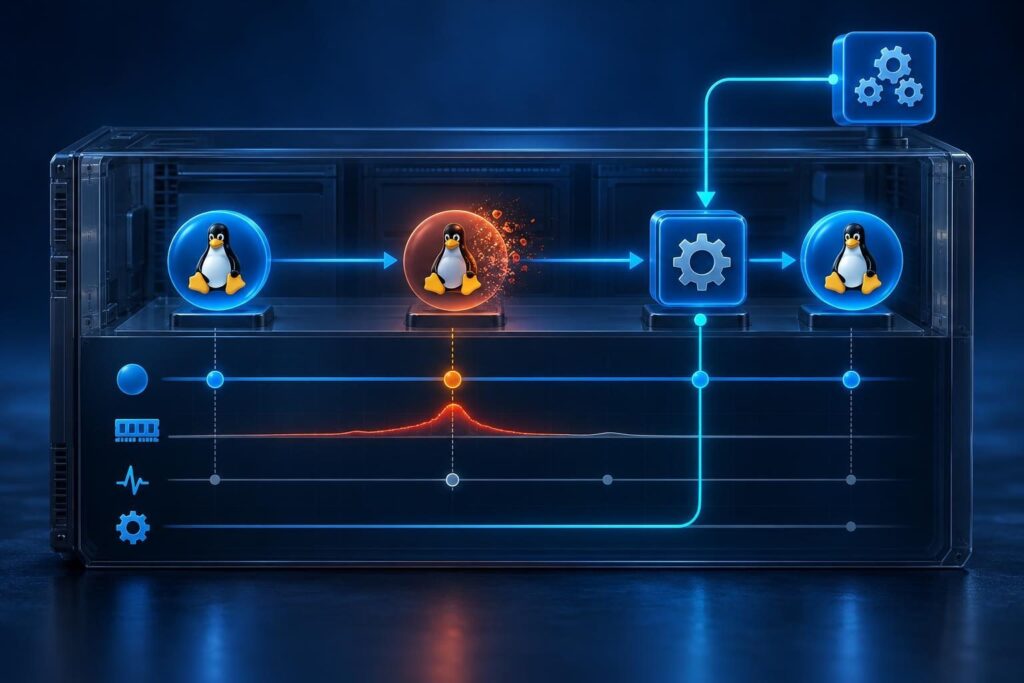
A Linux service restart timeline helps explain why a process disappears and returns. The key question is not simply whether systemd restarts it. You need to identify what ended the previous run, what requested the next start, and what changed beforehand.
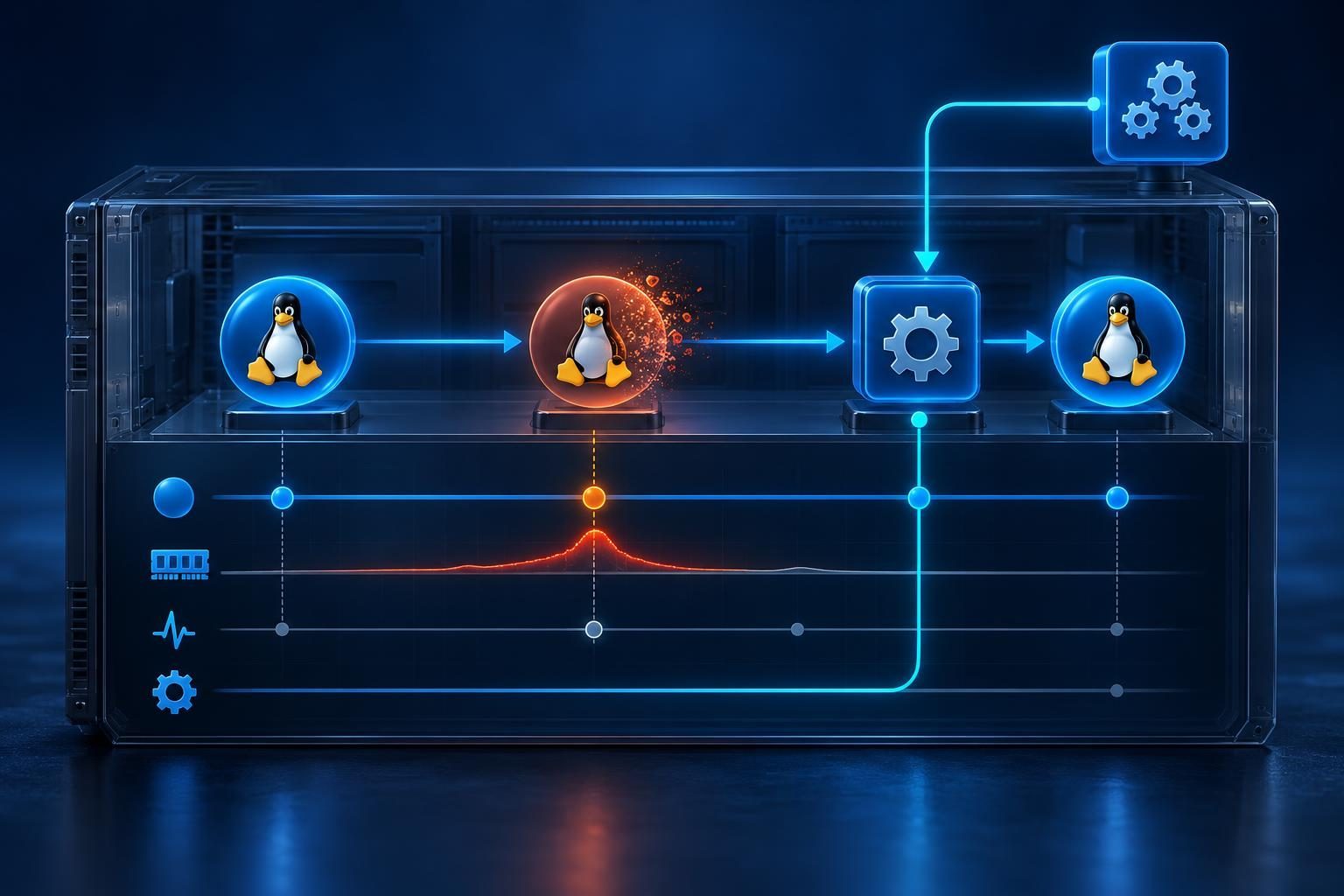
This guide focuses on attributing repeated restarts, rather than fixing an application that never starts. You will connect service state, application messages, kernel events, and automation records into one sequence. That distinction prevents a restart policy from taking the blame for an underlying crash.
Separate the Failure From the Restart Trigger
Systemd manages services through configuration objects called units. A service unit describes how to launch a process and how to handle its exit.
Repeated process IDs do not prove that the application crashed. A deployment tool might request restarts. A watchdog might terminate an unresponsive process. Alternatively, the application might exit normally while its policy starts it again.
Begin with three questions:
- Did the application exit, receive a signal, or reach a timeout?
- Did systemd schedule an automatic restart, or did another actor request one?
- What event immediately preceded the termination?
Also confirm whether the host rebooted. A new boot starts many services without indicating a service-specific failure. Use the separate unexpected Linux reboot investigation when the whole machine restarted.
Capture the Service Restart Timeline Before Changing Anything
Replace example.service with the actual unit name in these examples. They inspect state and logs, but permissions and available properties vary. Journal output can contain sensitive application data.
systemctl status example.service --no-pager -l
systemctl show example.service \
  -p Result -p ExecMainCode -p ExecMainStatus \
  -p NRestarts -p MainPID -p Restart -p RestartUSec
journalctl -u example.service --since "30 minutes ago" \
  -o short-iso-precise --no-pager
Record the timezone, boot, process IDs, and first known failure time. Save relevant output securely before restarting anything. State fields describe the current or most recent execution, not a complete incident history.
Create a small evidence table:
- Before exit: last application message and any configuration or deployment change.
- Termination: exit code, signal, watchdog event, or timeout.
- Restart decision: automatic restart message or an external restart record.
- Next start: new process ID and application readiness result.
The journalctl manual explains time filters and boot selection. Use a narrow incident window to keep unrelated messages out.
Read Exit Status Alongside Restart Policy
Inspect the unit and any local overrides:
systemctl cat example.serviceLook for Restart=, RestartSec=, and any exit-status exceptions. With Restart=always, a normal application exit can trigger another run. With Restart=on-failure, failures can trigger recovery, including certain signals and timeouts.
An explicit systemd stop normally suppresses automatic restarting. Therefore, stop/start messages without an automatic-restart message warrant investigation of external controls.
ExecMainCode identifies the termination category. ExecMainStatus supplies the corresponding exit status or signal number. Do not interpret a number without its category and surrounding log messages.
A nonzero application exit code does not explain the root cause by itself. Check the application’s own documentation and logs. Conversely, exit status zero can still reveal an operational problem if a long-running service exits unexpectedly.
For units with helper commands, inspect messages from ExecStartPre= and ExecStartPost= too. The main process status alone may miss the failing stage.
Distinguish Watchdog Failures From Slow Startup
A service watchdog expects periodic health notifications from a compatible application. Check WatchdogSec= and messages indicating a watchdog timeout.
A missed notification can mean a deadlock, overloaded event loop, blocked storage, or a broken notification path. It does not automatically prove that the configured interval is too short.
Startup timeouts represent a different failure. Review TimeoutStartSec= and the unit’s Type=. For example, a notification-based service must report readiness in the expected way.
Add the timeout event to your Linux service restart timeline, then inspect the preceding application activity. Look for blocked database connections, slow recovery, or an unavailable mount.
Do not disable watchdogs or extend timeouts simply to remove alerts. First establish whether the application makes progress. Any temporary change needs an owner, rollback plan, and monitoring.
Correlate Memory Kills With Kernel Evidence
Linux can terminate processes when memory pressure becomes severe. A service-level memory limit can also cause an out-of-memory event inside its control group. A control group tracks and limits a set of processes.
journalctl -k --since "30 minutes ago" --no-pager
systemctl show example.service \
  -p MemoryCurrent -p MemoryHigh -p MemoryMax -p OOMPolicy
Search kernel messages for the affected process and memory-kill details. Also inspect systemd-oomd logs if that userspace memory-pressure service runs on the host.
A SIGKILL termination alone does not prove memory exhaustion. An administrator or another tool can send the same signal. Correlate timestamps, process IDs, and explicit memory-pressure evidence.
Current memory use may look normal after a restart. That reading cannot exclude an earlier spike. Historical metrics help distinguish steady growth from a short workload surge.
Likewise, a host can show free memory after killing a large process. Avoid treating a post-incident snapshot as evidence that memory was never constrained.
Trace Dependencies and External Restart Requests
Inspect related units around the same timestamps. Dependency settings can explain why systemd stops or restarts a service when another unit changes.
After= controls ordering; it does not prove application readiness. Settings such as Requires=, BindsTo=, and PartOf= create different relationships. Read their actual configuration before attributing a restart to a dependency.
Next, compare deployment records, package updates, timers, scheduled jobs, and monitoring actions. An external health checker may request restarts while systemd sees otherwise normal operation.
NRestarts tracks automatic service restarts, not every external restart request. A low value therefore does not rule out repeated stop/start cycles.
The journal may show the transition without identifying the requester. Audit logs, automation records, or deployment history may supply that missing evidence. Do not claim attribution when those records are absent.
Check Environment Changes and Application Logs
Compare the first failing run with the last healthy period. Review package changes, application releases, credentials, environment files, and unit overrides.
A running process can retain older settings while a replacement reads newly changed values. This explains why a deployment or scheduled restart sometimes exposes a pre-existing configuration error.
Inspect application logs before the termination, not just startup messages afterward. Look for failed assertions, missing secrets, unavailable databases, expired credentials, or storage write failures.
Some applications write to separate files rather than the journal. Check log rotation boundaries and confirm that timestamps use the same timezone.
If the program works interactively but fails under systemd, compare its service execution context. Focus on the changed setting rather than weakening permissions or security controls broadly.
Handle Rate Limiting and Verify the Actual Repair
Messages such as “start request repeated too quickly” describe a protective limit, not the original fault. Review StartLimitIntervalSec= and StartLimitBurst=, then find the earlier failure.
After correcting the cause, an authorized operator may use systemctl reset-failed example.service to clear the failed state and start-rate counter. Starting the unit remains a separate action with operational consequences.
Do not repeatedly clear limits to force a broken application through another cycle. Preserve evidence and coordinate recovery if repeated starts risk duplicate work or damaged data.
Finish your Linux service restart timeline with the repair and its validation. Confirm application readiness, stable process identity, normal resource use, and no unexpected restart messages. Observe beyond the previous failure interval and include a representative workload.
When the trigger remains unclear or the service handles critical data, professional remote assistance may help. Tech Rescue Ops LLC provides remote server support for evidence review and controlled recovery planning.