
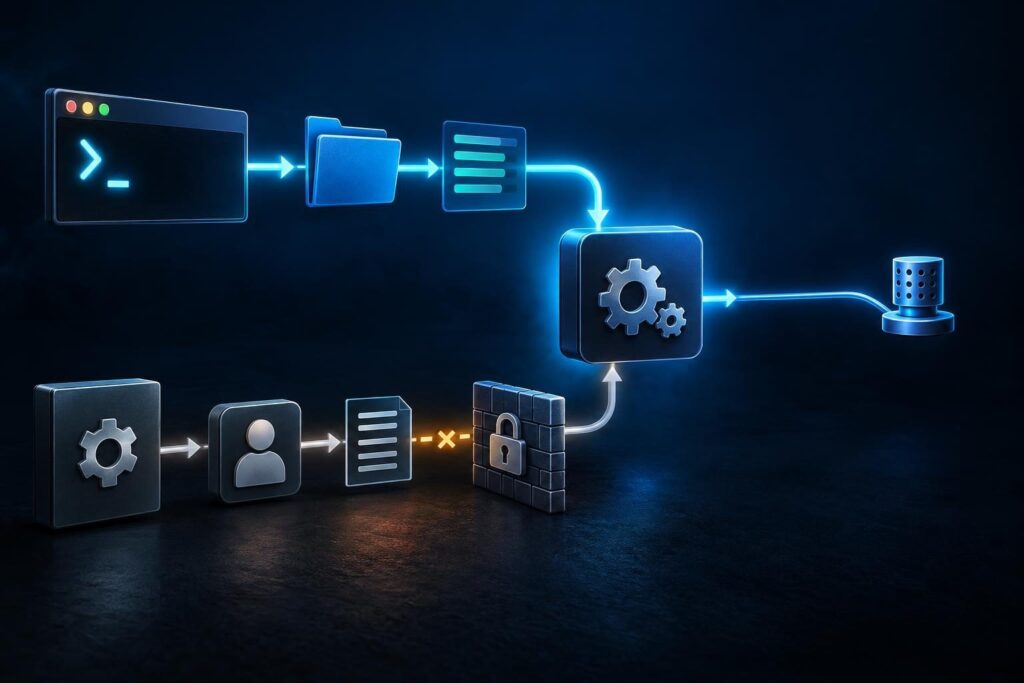
A Linux application can start from your terminal yet fail when systemd launches it. The difference often lies in the systemd execution context: its user, working directory, environment, and security limits. Your successful shell test may quietly supply something the service lacks.
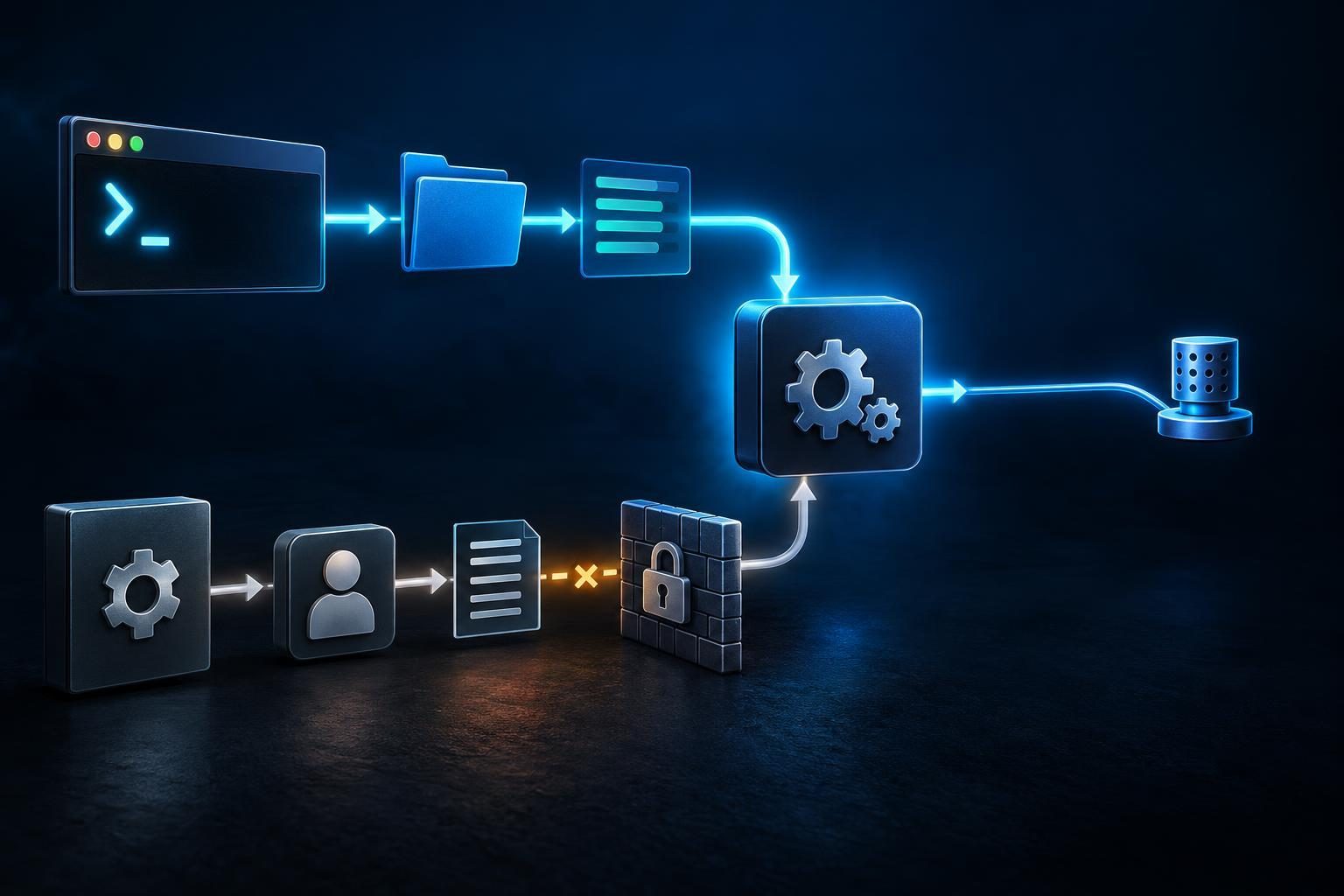
This guide focuses on that mismatch, rather than general server failures or repeated restart loops. Follow the evidence from the failed startup to a controlled comparison. Avoid repeated launches, broad permission changes, or disabling security controls just to make the error disappear.
Capture the Failed Service Startup Before Changing Anything
First, identify the exact unit name. A unit is systemd’s configuration object for a service or another managed resource. The examples use example.service; replace it with your actual unit.
sudo systemctl status example.service --no-pager --full
sudo journalctl -u example.service -b --no-pager -n 100
Start with the first command to see the current state and recent messages. The second retrieves up to 100 journal entries for this unit from the current boot. Read timestamps carefully: an older failure may not describe the latest attempt.
Record the failed command, startup time, exit status, and first useful error. Share only redacted output, since logs can contain credentials or customer data. Journal retention and application logging settings may limit what appears.
Use the journalctl manual for time filters when several attempts overlap. Preserve the original evidence before resetting failure state or editing configuration.
Read Exit Codes as Clues, Not Complete Diagnoses
Distinguish a launch failure from an application that starts and then exits. The status output may show which startup command failed, including a preparation command rather than the main process.
- 203/EXEC: systemd could not execute the configured program. Check the path, executable access, and script interpreter.
- 200/CHDIR: systemd could not enter the configured working directory.
- 217/USER: user credential setup failed. Verify the configured account and relevant identity services.
- Application exit status: the program ran but reported failure. Consult its logs and documentation.
An ordinary exit code such as 1 has no universal application meaning. Likewise, a signal termination does not prove a configuration error. Inspect the surrounding journal messages before choosing a fix.
If the process remains active but startup times out, inspect Type=. For example, a service expecting a readiness notification needs an application that actually sends it. Increasing the timeout cannot correct a notification mismatch.
Inspect the Effective Unit and Its systemd Execution Context
Inspect both the original unit and its overrides. A drop-in is a supplementary configuration file that changes selected unit settings.
sudo systemctl cat example.service
sudo systemctl show example.service \
  -p User -p Group -p WorkingDirectory -p ExecStart \
  -p EnvironmentFiles -p FragmentPath -p DropInPaths
Compare this systemd execution context with the shell session where the application works. An empty User= normally means root for a system service, not your logged-in account. User services follow a different identity model.
Check these differences first:
- The executable and all arguments match the successful test.
- Its working directory contains the expected relative paths.
- The service uses the intended account and groups.
- No override points to an old deployment or configuration file.
ExecStart= does not normally run through an interactive shell. Shell features such as pipes and output redirection need an explicit shell or another suitable design. Prefer clear program arguments over adding shell complexity.
Compare systemd Environment Files With Your Shell
Your terminal may load profile scripts, activate a virtual environment, or export application settings. A system service does not inherit your interactive shell environment.
Inspect Environment= and EnvironmentFile= locally. Confirm the file path, variable names, and values the application requires. A leading minus sign on an environment-file path allows systemd to ignore a missing file.
Environment files are not general shell scripts. Do not assume shell commands, export statements, or variable substitutions behave as they do in your terminal. Never source an unfamiliar file into a privileged shell just to test it.
For system services, the system manager normally reads environment files before switching to the service account. Application configuration files, however, usually need access under the application’s own identity.
Also compare runtime paths. A shell might find a Python interpreter or another tool through a customized PATH. Use the intended executable explicitly, including its virtual-environment path where appropriate. Avoid copying your entire shell environment into the unit.
Check Dependencies and Startup Ordering Separately
A manual launch often happens after databases, mounts, and network links become ready. Boot-time startup may expose a dependency you never noticed.
systemctl list-dependencies example.service
systemctl show example.service -p After -p Requires -p Wants
After= controls ordering when both units participate in startup. It does not start the other unit by itself. Requires= and Wants= pull in dependencies, but neither alone establishes ordering.
Inspect the status and logs of any failed prerequisite. For remote filesystems, check the actual mount. For databases, confirm application-level readiness rather than only an active process.
Similarly, network-online.target does not guarantee that a remote API or database will answer. Applications should handle temporary remote failures appropriately.
Avoid hiding dependency faults with a fixed sleep. It can pass one test and fail during a slower boot. Instead, define the correct relationship and use a documented readiness check where needed.
Verify Permissions, Storage, and Security Boundaries
Check the exact path named in the error. The service account needs directory traversal access along the path, not merely access to the final file.
namei -l /srv/example/config/app.conf
sudo -u appuser test -r /srv/example/config/app.conf
Replace both the path and account before running these checks. The second command tests readability under that account, but it does not reproduce every service restriction.
Inspect settings such as ProtectSystem=, ReadWritePaths=, PrivateTmp=, and RootDirectory=. These can change what the application can access or see. SELinux and AppArmor can also deny operations despite ordinary file permissions.
Do not use recursive ownership changes or world-writable permissions as a diagnostic shortcut. Preserve the intended security boundary and correct only the access the application needs.
Storage errors need separate checks. Follow the Linux disk recovery sequence for capacity problems. If logs report too many open files, investigate file descriptor exhaustion rather than changing permissions.
Check Port Ownership Before Launching Another Copy
A successful manual test can create its own service failure. The manually launched process may still own the listening port when systemd tries to start another copy.
sudo ss -ltnp
sudo ss -lunp
These commands list listening TCP and UDP sockets, respectively. Compare the expected address and port with the owning process. Consult the ss manual for filtering options.
Do not kill an unfamiliar process solely because it occupies the desired port. Establish its owner and business role first. A socket unit may also own the listener intentionally for socket activation.
Ports below 1024 may require additional privilege, depending on system settings and capabilities. A successful root-shell test does not prove the service account can bind the same port. Prefer the application’s documented deployment model over running the whole service as root.
Run a Controlled Direct Process Test
Direct testing helps isolate an application fault from a systemd execution context mismatch. However, launching the application can write data, send messages, or start background jobs.
- Obtain an approved maintenance window and identify dependent services.
- Check for socket activation, timers, or another supervisor that could launch a competing copy.
- Stop the managed instance when appropriate, then verify that it has exited.
- Use a documented configuration-check mode first, if the application provides one.
- Reproduce the configured user, working directory, executable, and required environment without exposing secrets.
Keep a direct test in the foreground when the application supports it. Capture the first error, then stop the test instance cleanly.
A test through sudo -u still does not reproduce namespaces, capabilities, resource limits, or all security controls. If it succeeds, compare those remaining unit settings. If it fails identically, investigate the application or its dependencies first.
Apply One Fix and Validate the Managed Service
Once evidence identifies the mismatch, make one reversible change. Prefer a targeted drop-in over editing a package-managed unit. Back up existing settings and document your rollback.
After changing a unit or drop-in, run sudo systemctl daemon-reload. This reloads unit definitions; it does not restart the application. Changing only an environment file generally requires a service restart, not a daemon reload.
Start the service during the approved window. Then check its status, new journal entries, listening sockets, and actual application behavior. An active unit alone does not prove users can complete their work.
Document the systemd execution context difference that caused the failure. Include the failed setting, supporting error, correction, and validation result.
When production data, security controls, or unfamiliar dependencies complicate testing, professional remote assistance may be appropriate. Tech Rescue Ops LLC offers remote server support for evidence-led diagnosis and controlled recovery.