
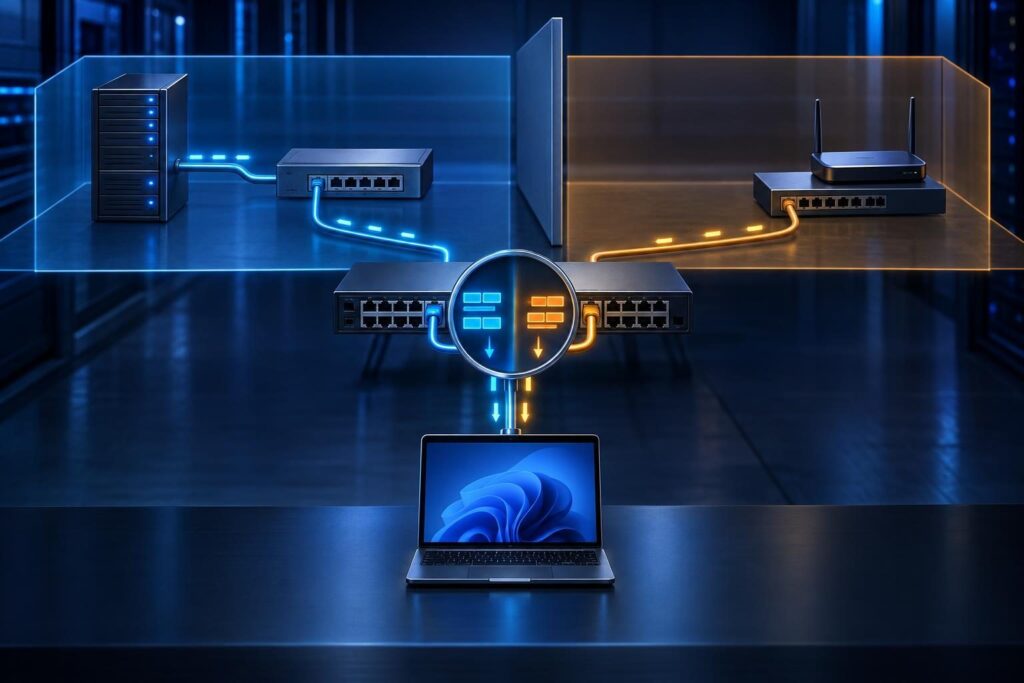
Devices receiving incorrect DHCP addresses can appear connected while losing access to printers, shared files, or business applications. The useful question is not simply whether DHCP works. It is which server supplied the address, which network the device actually joined, and why that server selected its scope.
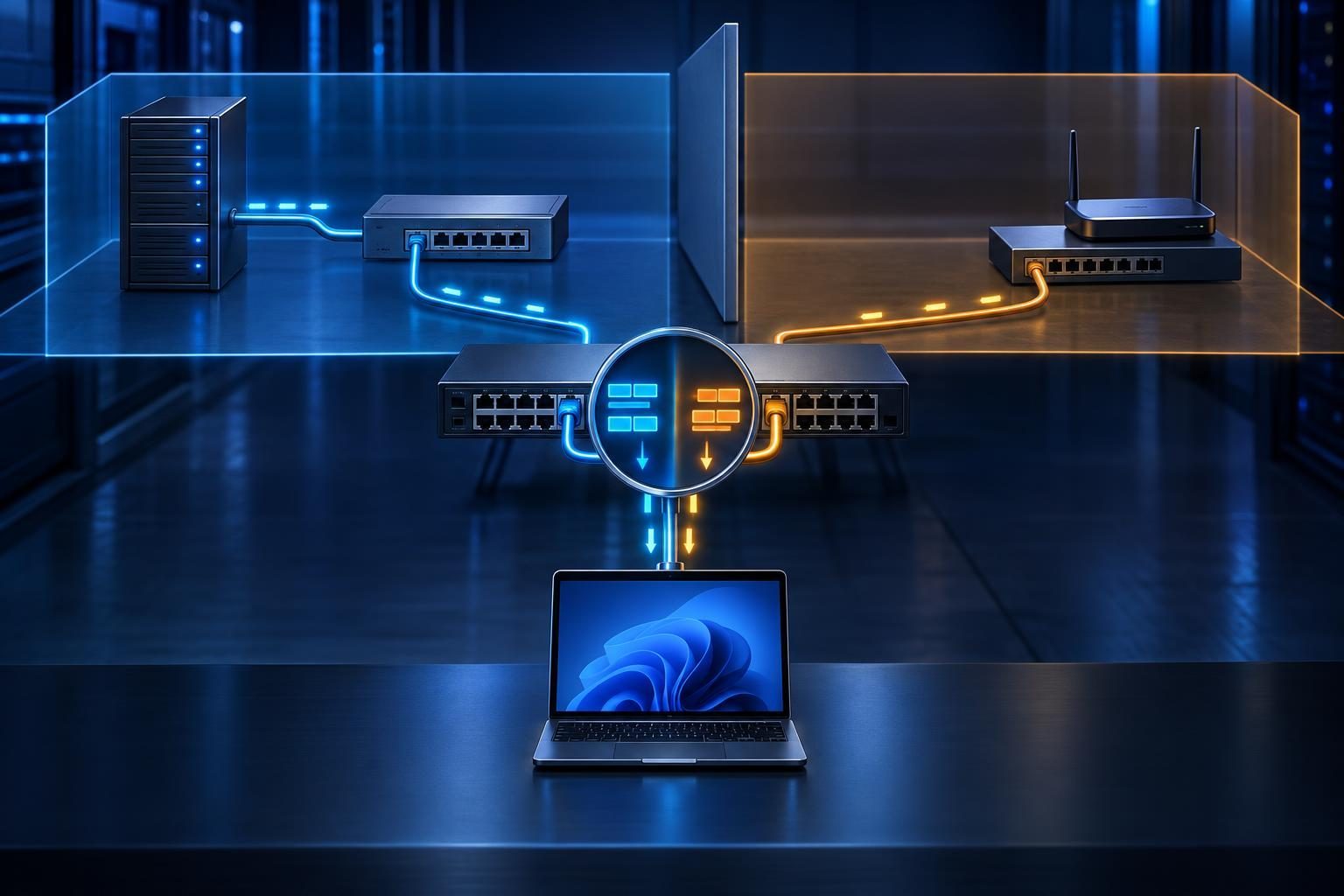
Dynamic Host Configuration Protocol (DHCP) supplies addresses and settings such as the default gateway and DNS servers. This guide focuses on tracing unexpected IPv4 assignments. Start with one affected device and one working device, rather than resetting the entire network.
Define What Makes the Address Wrong
A different address does not always indicate a fault. Most devices can use any available address within their intended subnet. A subnet is a group of addresses that communicate directly through the local network.
First, compare the assignment with your network plan:
- Does the address belong to the expected subnet?
- Do the subnet mask and default gateway match that network?
- Does the device need a reserved address, or merely a valid address?
- Does the problem affect one device, one switch port, or an entire wireless network?
An address beginning with 169.254 often indicates automatic link-local addressing after DHCP fails. It does not, by itself, prove that a server supplied the wrong address.
Likewise, an unexpected IPv6 address needs a separate investigation. IPv6 can use router advertisements and DHCPv6, which follow different rules.
Collect the Lease Evidence Before Renewing
Record the affected adapter’s current settings before changing anything. On Windows, ipconfig /all shows IPv4 details, DHCP status, and usually the DHCP server and lease times. Other operating systems expose similar information through their network settings or connection manager.
Capture these details for both the affected and working devices:
- Address, subnet mask, default gateway, and DNS servers.
- DHCP server identifier and lease start and expiry times.
- Adapter MAC address, the network interface’s hardware identifier.
- Wired port or wireless network name and access point.
- Time of failure and any recent network changes.
Check that you are inspecting the active adapter. VPN software, virtual machines, and docking stations can add interfaces with unrelated addresses.
Do not release the lease on a computer that carries your only remote support connection. That action can disconnect you immediately. Arrange local assistance or an independent management path before testing lease renewal.
Use DHCP Offers to Identify the Address Source
When lease details leave uncertainty, capture DHCP traffic during a controlled test. Use an authorized capture on the client, relay, or a suitable switch monitoring port. Capture visibility depends on placement.
A typical new lease follows four messages: Discover, Offer, Request, and Acknowledgment. The client searches for service, receives an offer, requests an address, and receives confirmation. Renewals may use a shorter exchange.
Inspect the offered address, server identifier, subnet mask, gateway, and lease time. Match the transaction identifier and client identity across messages. Several devices may request leases at once.
Multiple offers do not automatically prove a rogue server exists. Legitimate redundant servers can respond. Compare every responding server with your approved inventory and check which offer the client selected.
This exchange helps separate incorrect DHCP addresses from local static settings or a lease retained from an earlier connection. Protect captures carefully; they can expose device identifiers and internal network details.
Find Rogue DHCP Servers Without Disabling Legitimate Service
A rogue DHCP server is an unapproved device that answers client requests. Common sources include spare routers, travel routers, test systems, or incorrectly connected equipment.
An unfamiliar server identifier is a lead, not a complete physical location. With a relay, the visible packet source may belong to the relay rather than the DHCP server.
Correlate capture evidence with switch MAC tables, router neighbor records, and the equipment inventory. A switch MAC table maps observed interface addresses to ports. Following those ports can locate the unexpected responder.
After confirming ownership and impact, isolate the offending connection or disable its DHCP service. Do not shut down a server merely because its address looks unfamiliar.
Managed switches may support DHCP snooping, which restricts server replies to trusted ports. Verify platform behavior before enabling it. Incorrect trust settings can block legitimate replies, including relay traffic.
Removing the rogue source does not instantly replace existing leases. Test renewal on a noncritical device before planning wider recovery.
Check VLAN Membership Against the Intended Scope
A virtual LAN (VLAN) separates devices into distinct local networks. Each DHCP scope defines the address pool and settings for a network. A perfectly valid lease can still be wrong for the device’s intended role.
For example, a staff device connected to a guest VLAN may receive a valid guest address. The DHCP server has followed the actual network placement, not the user’s expectation.
Trace the path from the endpoint:
- Verify the wired port’s access VLAN.
- Check the wireless network’s VLAN mapping.
- Inspect VLAN tagging across switch and access-point uplinks.
- Compare the VLAN gateway interface with the intended scope.
- Check authentication policies that assign VLANs dynamically.
Some phones and computers share a port while using separate voice and data VLANs. Inspect both assignments before changing that port.
Correct the network placement when it causes the mismatch. Changing the DHCP scope to accommodate a misplaced endpoint can weaken network separation.
Verify the DHCP Relay’s Network Identity
Client discovery broadcasts usually stay within their local network. A DHCP relay forwards requests to a server on another subnet.
The relay commonly adds a gateway address field, called giaddr. The server uses this information to select the client’s scope. Some environments also use Option 82, which carries relay information, for policy decisions.
Compare the relay configuration with the topology:
- Does the relay operate on the intended client VLAN interface?
- Are all forwarding destinations approved DHCP servers?
- Does its gateway field identify the correct client subnet?
- Do server policies interpret relay information as intended?
- Can requests and replies cross the required firewall and routing paths?
An old relay destination can reach a retired server that still answers. Incorrect interface or policy mappings can select an unintended scope.
DHCPv4 commonly uses UDP ports 67 and 68, but rule direction depends on the relay architecture. Avoid broad firewall allowances. For pfSense deployments, consult the official Netgate documentation for applicable relay and interface behavior.
Separate Stale Leases From Reservation Problems
A device may retain an earlier lease after a network move or configuration change. Compare its lease timestamps with the change window and the server’s lease record.
Confirm that the device actually uses DHCP. A manually configured address bypasses normal lease assignment. Also check whether another network adapter holds the address you expected.
Reservations associate a client identity with a chosen address. Depending on the server, that identity may involve a MAC address or a DHCP client identifier.
Private wireless MAC addresses, replacement adapters, and docks can change the identity the server sees. Compare the reservation with the actual request rather than an old inventory label.
If a reservation exists on one legitimate server but not another, results may vary between connections. Check configuration consistency across approved servers.
After correcting the underlying mismatch, renew one test client’s lease during a safe window. Avoid deleting all leases: the database does not control addresses that clients continue using.
Check Address Exhaustion Without Expanding Into Another Subnet
An exhausted pool usually prevents a new lease rather than producing a valid address from another subnet. However, a second server may answer while the intended server has no addresses left.
Review available addresses, active leases, exclusions, reservations, and rejected or conflict-marked entries. Check server logs at the exact failure time.
Guest traffic, long lease durations, and changing client identities can consume capacity. Distinguish genuinely active clients from records awaiting expiry before adjusting lease policy.
Never extend a pool past its subnet boundary. Exclude gateways and infrastructure addresses according to your addressing plan. Shortening lease duration also does not immediately reclaim every existing lease.
Make capacity changes deliberately, then observe new assignments. If DHCP succeeds but applications still fail, use paired network and DNS tests to isolate the remaining issue.
Validate Recovery and Preserve an Escalation Record
Recovery from incorrect DHCP addresses needs more than a successful ping. Confirm the address, mask, gateway, DNS settings, server identity, and intended VLAN after renewal.
Test business resources and expected isolation boundaries. A guest device should not gain staff access merely because its address now looks familiar.
Record the change, affected scope, test results, and rollback steps. Keep a small evidence package with timestamps, lease records, topology notes, and relevant capture excerpts.
Professional remote assistance may help when relay paths cross several devices or lease renewal risks losing management access. Tech Rescue Ops LLC can review that evidence through its remote support service. Local access may still be necessary to trace or disconnect unexpected equipment.