
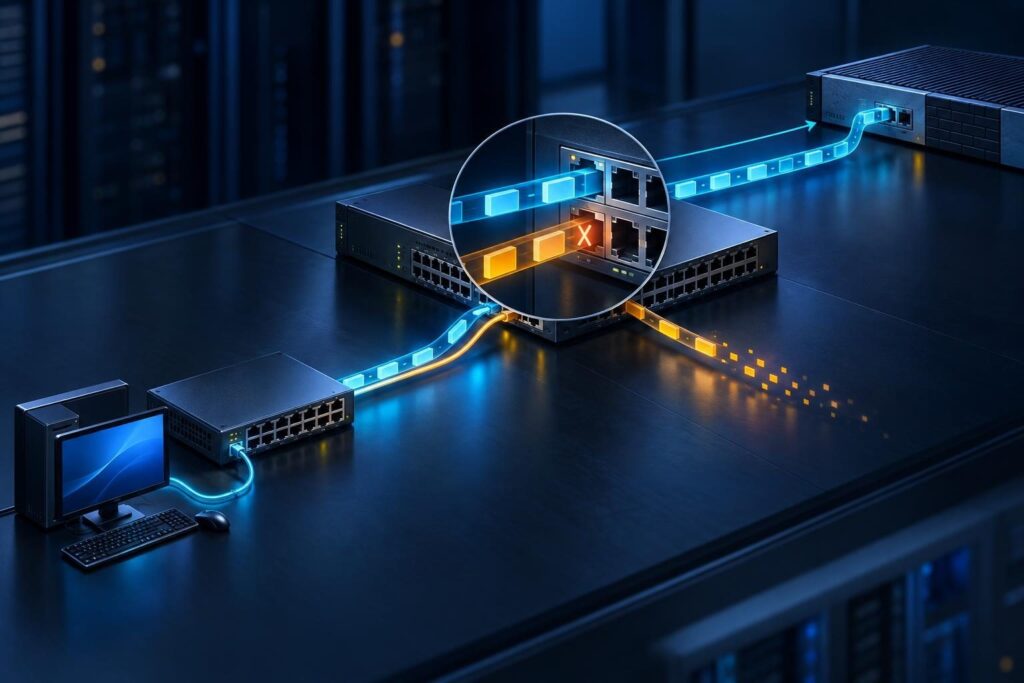
VLAN tagging faults can leave devices disconnected after a switch replacement, cable move, or access point change. The Ethernet link may look healthy. Yet traffic can enter the wrong network or stop at an uplink.
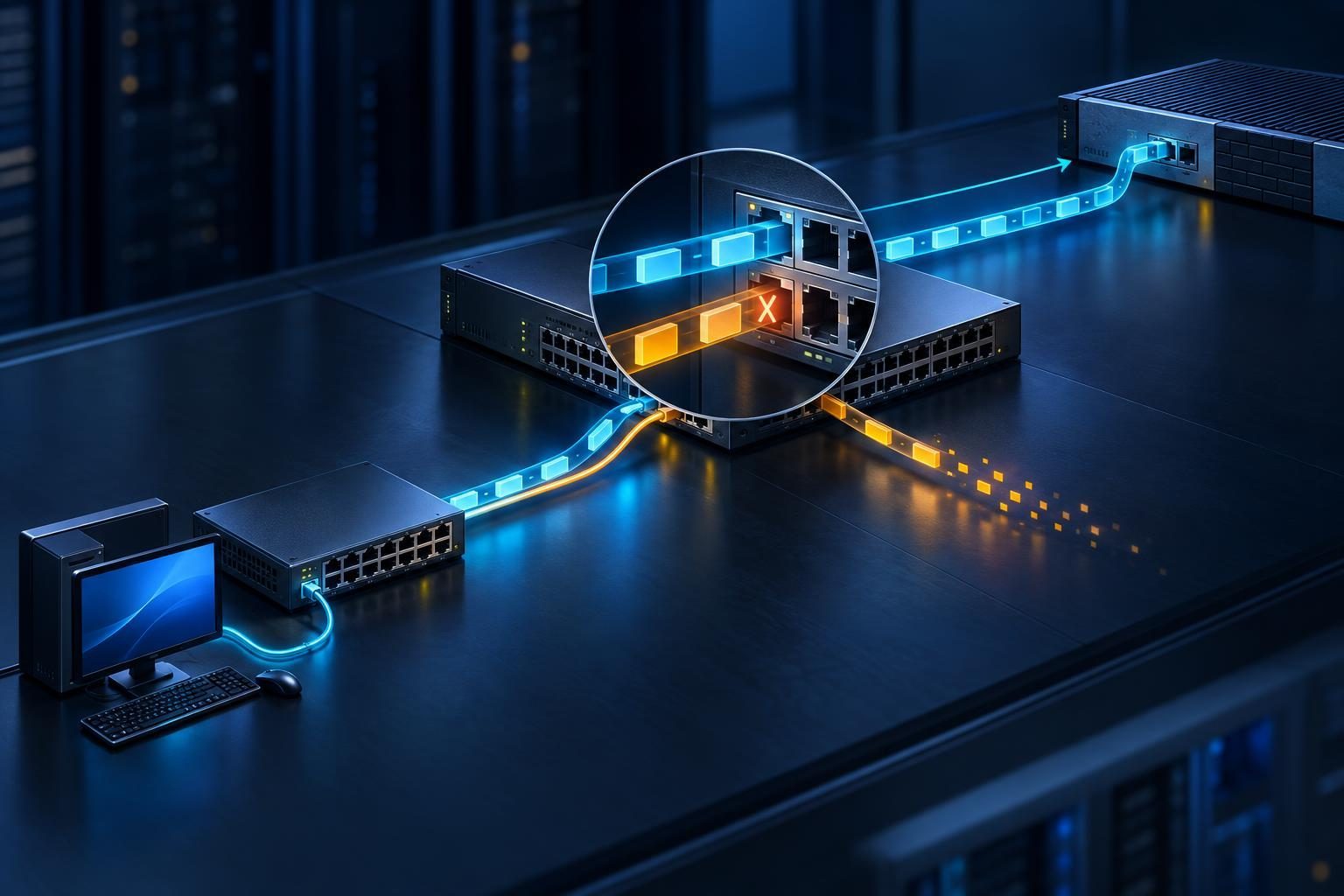
This guide focuses on tracing VLAN identity across a changed network path. Start with the endpoint port, follow each switch link, and finish at the gateway. Check routing and security policy only after you confirm that traffic reaches the intended interface.
Define the Failed Path Before Changing Anything
A virtual local area network, or VLAN, separates Ethernet traffic into distinct logical networks. Switches can carry several VLANs over one physical link. Each participating device must agree on how that link handles traffic.
Begin with one affected device and one specific destination. Record the source address, destination address, service, and test time. A failed printer connection provides better evidence than a report that “the network is broken.”
- Identify the last working configuration and the recent change.
- Trace the endpoint cable through switches to its gateway.
- Record the intended VLAN number and IP subnet.
- Compare an affected port with a working port serving the same device type.
- Confirm that security policy should permit the requested connection.
Export configurations before editing them. Arrange another management path if the changed uplink also carries your remote session. Moving a management VLAN can disconnect every remote troubleshooting tool at once.
Keep the initial scope narrow. A working device on another VLAN does not prove that the affected VLAN crosses the same uplink.
Check Access Port Mode and Endpoint Tagging
An access port normally places untagged endpoint traffic into one VLAN. A trunk carries multiple VLANs, usually with tags that identify their membership. Port labels and exact behavior vary by switch platform.
Most ordinary computers and printers send untagged traffic. They usually need an access port assigned to the intended VLAN. A server, access point, or IP phone may use tags, depending on its configuration.
Inspect the running port settings rather than relying on an old port description. Confirm the mode, assigned VLAN, and any separate voice VLAN. Some switches negotiate trunk mode, so the operational mode may differ from expectations.
Managed switches may call the untagged ingress assignment a port VLAN ID, or PVID. Check both ingress classification and outgoing tagging behavior. A membership checkbox alone may not describe both.
Next, inspect the endpoint. A network adapter with VLAN tagging enabled can conflict with a port expecting ordinary untagged traffic. Conversely, a server expecting tagged traffic may not recognize an untagged connection.
Do not force every endpoint port into trunk mode. That can expose additional networks without fixing the mismatch.
Trace VLAN Tagging Faults Across Every Trunk
Write down both ends of each uplink. For each end, record the port mode, allowed VLANs, and tagging treatment. Compare settings link by link rather than checking only the main switch.
A VLAN can exist on both switches but still fail to cross their connecting trunk. An allowed-VLAN list may omit it. Some platforms also require local VLAN creation before forwarding traffic.
Check these points at every handoff:
- The required VLAN exists where the platform requires it.
- Both ports support the intended trunk operation.
- Each allowed-VLAN list includes the required VLAN.
- Neither end unexpectedly sends that VLAN untagged.
- The active path matches your cable map.
If the uplink uses several bundled cables, inspect the logical bundle configuration and member status. A link aggregation group makes several physical links act as one connection.
Also check spanning tree, the switch feature that prevents Ethernet loops. A blocked redundant link may be normal. Follow the active forwarding path instead of assuming every connected cable carries traffic.
A useful clue is selective failure: one VLAN works across an uplink while another fails. Investigate the missing VLAN’s membership and tagging before blaming the cable.
Compare Native VLANs and Untagged Traffic Handling
The native VLAN commonly identifies untagged traffic on a trunk. However, platforms differ, and some support tagging the native VLAN too. Verify actual behavior rather than assuming a shared default.
A mismatch can place untagged traffic into different VLANs at opposite ends. That may affect management access or a single device group while tagged VLANs continue working.
For example, one switch might send its management traffic untagged. The neighboring switch could classify those frames into a different network. Both links remain up, but the intended management path fails.
Compare native VLAN numbers, PVID settings, and tagged-versus-untagged membership on both ends. On mixed-vendor links, translate the concepts rather than matching labels alone.
VLAN tagging faults often become clearer when you ask one question: what VLAN will the receiving port assign to this exact frame?
Do not change the native VLAN during an active remote session without a recovery plan. Review the intended design first. Allowing every VLAN on the trunk may hide an omission, but it also widens network exposure.
Use Switch Learning and Captures to Find the Break
A switch learns device media access control, or MAC, addresses from incoming Ethernet frames. Its forwarding table can show which port and VLAN received a device’s traffic.
Generate a small, approved test from the affected endpoint. Then inspect its MAC address on the access switch and the next switch upstream.
- No entry on the access switch: inspect the endpoint, cable, port state, and access controls.
- An entry in the wrong VLAN: investigate port assignment or endpoint tagging.
- A correct local entry but none upstream: inspect the trunk and active forwarding path.
- A correct upstream entry: continue toward the gateway.
Missing entries alone do not prove a fault. Switches age out inactive entries, so inspect them shortly after test traffic.
A port mirror copies selected traffic to a capture port. Use it cautiously and limit collection to the relevant link and test. Captures can contain sensitive business data.
Capture tools do not always show tags accurately. Network adapters, hardware processing, or mirror settings may remove them. Confirm the capture method before concluding that a frame lacked a VLAN tag.
Verify the Gateway Interface and DHCP Scope
Once traffic reaches the gateway link, check its receiving interface. A router may use a tagged subinterface. A routing switch may use a switched virtual interface, or SVI, for that VLAN.
Confirm the VLAN number, parent interface, IP address, subnet mask, and operational status. Some switches keep an SVI down until the VLAN has an active forwarding port.
Next, review Dynamic Host Configuration Protocol, or DHCP. This service supplies addresses and network settings. Its scope defines the address pool and options for a particular subnet.
Check that the device has the expected address, mask, and default gateway. An old lease or static address can confuse testing after a port move. Renew a lease only when you can tolerate a brief interruption.
If the DHCP server sits elsewhere, verify the relay configuration on the intended gateway interface. A relay forwards local DHCP requests to a remote server.
Wrong addressing warrants a separate investigation. Follow this guide to trace incorrect DHCP addresses to their source. Do not enlarge an address pool to compensate for traffic entering the wrong VLAN.
Check ACLs and Return Routing After the VLAN Handoff
Correct tagging does not guarantee permission to communicate. An access control list, or ACL, filters traffic by criteria such as addresses and ports. Firewall policy may also separate staff, guest, voice, and device networks.
Use the original source, destination, service, and timestamp to examine rule counters or logs. Check interface direction and rule order. Avoid temporary allow-all rules that remove intended isolation.
Then inspect the reply path. The destination needs a route back to the source subnet, often through its default gateway. Multiple routers can send replies through an unexpected firewall.
Stateful firewalls track connections and may reject replies that arrive outside the expected path. Prove where requests and replies travel before adding routes or changing security rules.
If both endpoints reach their correct gateways, shift to the inter-VLAN routing diagnostic sequence. That is a different stage from proving VLAN delivery across a changed trunk.
For pfSense deployments, consult Netgate’s official documentation for interface, VLAN, DHCP, and firewall behavior. Match the guidance to your installed release.
Make One Correction and Verify the Intended Boundaries
Fix the first demonstrated mismatch, not every suspicious setting. Record the original value, planned correction, rollback step, and expected result. Apply changes during an agreed maintenance window when needed.
Repeat the same endpoint-to-destination test afterward. Confirm addressing, gateway access, and the actual application service. A successful ping does not prove that printing or file access works.
Also verify that prohibited traffic still fails. Restoring access by collapsing VLAN boundaries is not a successful repair. Check nearby ports and other VLANs for unintended effects.
Document the corrected link and update the port map. To prevent repeat VLAN tagging faults, record tagged membership, untagged handling, native VLANs, and gateway ownership at each handoff.
Professional remote assistance may help when the affected trunk carries management traffic or spans several vendors. Tech Rescue Ops LLC can review the evidence through remote troubleshooting support. Arrange local recovery access before any change that could sever the session.