
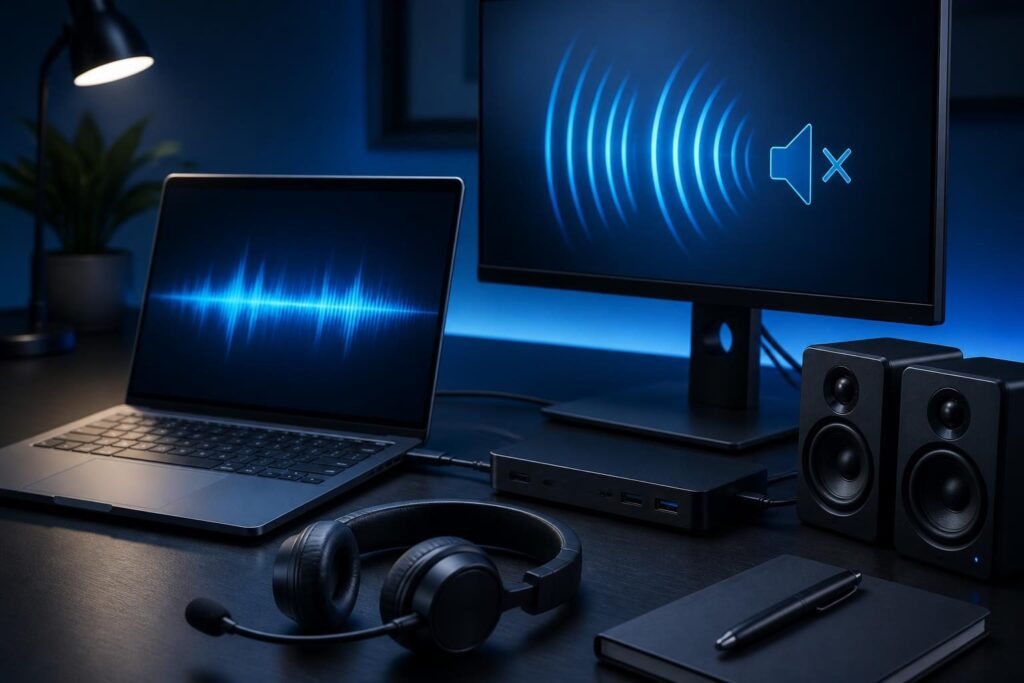
When a user reports a Windows computer no sound troubleshooting problem, the cause may be simple or layered. A muted browser tab, disconnected headset, docking station, damaged cable, driver issue, or failed speaker can produce similar symptoms.

Start with evidence instead of changing several settings at once. Ask what should produce sound, which application has the problem, and whether the issue began after a restart, update, docking change, or hardware move. This guide provides a safe sequence for business computers.
Begin with simple Windows audio checks
First, confirm that the computer is not muted. Select the speaker icon in the Windows taskbar and raise the volume. Check the physical volume controls on the monitor, headset, speakers, or keyboard. Some displays have their own mute setting.
Next, play a known audio source. A short system sound or a trusted local media file helps separate an application problem from a system problem. Avoid using only one website, because browser permissions or a site-specific fault can mislead the diagnosis.
- Check the taskbar volume icon for mute status.
- Test the computer’s built-in speakers if available.
- Disconnect and reconnect the headset or speaker cable.
- Confirm that Bluetooth headphones still show as connected.
- Ask whether other users or computers have the same issue.
If only one program lacks audio, do not reinstall drivers yet. Windows may send that application to a different device or mute it separately.
Check muted applications and per-app volume
Windows can control application volume independently from the main system volume. Therefore, a browser, meeting client, media player, or phone application may remain silent while other sounds work normally.
Open the volume mixer from the taskbar speaker controls. Review the affected application and confirm that its volume is raised. Also check its selected output device. A meeting application may use a headset while Windows sends notification sounds to a monitor.
Within the application, open its audio settings. Select the intended microphone and speaker explicitly instead of leaving device selection on an automatic option. Then use the application’s built-in test function, if available.
Browser tabs can also be muted individually. Look for a muted speaker indicator on the tab or page. A remote meeting may have its own mute state, participant audio setting, or permission prompt.
This is often the fastest form of Windows computer no sound troubleshooting because it avoids unnecessary system changes. Record which applications work and which do not. That result narrows the next step.
Confirm the correct output device
Windows may send sound to a device that exists but produces no audible output. Common examples include an HDMI monitor, USB headset, docking station, Bluetooth headset, virtual meeting device, or disabled speaker endpoint.
Open Windows sound settings and inspect the output list. Choose the device the user can physically hear. Play the operating system test sound. If the selected device is a monitor, verify that the monitor has speakers and that its volume is not muted.
Pay attention to duplicate names. A laptop may show internal speakers, a dock’s audio device, and a monitor connection. Disconnecting the dock temporarily can reveal whether Windows selected the wrong endpoint.
For a headset, check whether it has separate “headphones” and “headset” entries. The headset profile may behave differently during calls. In a business environment, document the device model and connection type before replacing equipment.
If Windows cannot see the expected output, continue to Device Manager and physical checks. If Windows sees it but produces no sound, compare it with another output device. This comparison is a useful Windows computer no sound troubleshooting test.
Isolate docking station and monitor problems
Docking stations add another layer between the computer and its audio hardware. USB, DisplayPort, HDMI, firmware, power, and device-selection problems can all affect sound.
Undock the laptop and test its built-in speakers. If audio returns, reconnect the dock and test one connection at a time. Check whether the monitor receives power and whether its speakers are enabled. A display can show video while carrying no usable audio.
Try a direct headset connection to the laptop. This comparison helps classify the fault:
- Built-in speakers work, dock audio fails: investigate the dock, monitor, cable, or dock driver.
- Direct headset works, speakers fail: review speaker selection, mute controls, and internal hardware.
- Every output fails: investigate Windows services, drivers, updates, and system hardware.
- Only one monitor fails: test another cable, display input, or monitor.
Do not assume that every USB-C port supports the same display and audio functions. Port capability and dock compatibility require verification from the computer and dock documentation.
For related USB isolation steps, see the guide to Windows USB device detection problems. Its device, cable, and port checks also help with USB audio equipment.
Investigate drivers and Windows audio services
A driver is software that lets Windows communicate with hardware. Audio may stop after an update, device replacement, corruption, or an incompatible vendor package.
Open Device Manager and expand the sound, video, and game controllers section. Look for warning symbols, missing devices, or a device that appears disabled. Record the device name and error message before making changes.
Use the device properties to review the driver date and status. Avoid downloading drivers from unfamiliar websites. Prefer the computer, motherboard, dock, or audio-device manufacturer’s support channel. Business devices may also use a managed update process.
Windows includes an audio troubleshooter. It can correct simple configuration issues, but it may also change the selected output. Note the original settings first, especially on shared or managed computers.
Restarting the Windows Audio service can help when the service has stopped. However, service changes may interrupt active calls or applications. Schedule the action when the user can test afterward.
Google’s structured troubleshooting guidance recommends collecting evidence, testing one hypothesis, and checking the result. Apply that method here: make one audio change, test, and record the outcome.
Separate software faults from hardware faults
Hardware testing should compare known-good components. Connect the user’s headset to another computer, then connect a known-good headset to the affected computer. Test the computer without the dock when possible.
Results matter more than assumptions. If one headset fails everywhere, replace or repair the headset. If several known-good devices fail on one computer, investigate the computer’s ports, drivers, services, or mainboard audio.
Inspect cables and connectors for bent pins, loose plugs, strain, or physical damage. For Bluetooth devices, check charge level, pairing status, and whether another nearby device has taken the connection.
External speakers may need their own power adapter. Confirm that the power indicator works and that the speaker’s input matches the connected cable. Hardware faults become more likely when software tests pass but no physical output works.
Use a safe escalation checklist
Before escalating the issue, capture a short record. Include the computer name, user, affected applications, output devices tested, dock and monitor details, recent changes, and exact symptoms.
Then note the tests that worked. “Laptop speakers work when undocked” provides far more value than “audio is broken.” Screenshots of sound settings and Device Manager can help a remote technician avoid repeating basic checks.
- Check whether system audio works.
- Identify whether the failure affects one application.
- Record which output device Windows selected.
- Test audio with the laptop undocked.
- Compare results with a known-good headset.
- Look for errors in Device Manager.
- Confirm whether an update or hardware change preceded the fault.
Do not repeatedly uninstall drivers, edit the registry, or apply unrelated system cleaners. Those actions can remove useful evidence or create new problems. Protect active meeting recordings and unsaved work before restarting.
A concise record supports Windows computer no sound troubleshooting during remote assistance. It shows which layer works and prevents repeated changes.
This Windows computer no sound troubleshooting sequence gives a remote technician a clear starting point if escalation becomes necessary.
If the computer also freezes or becomes unresponsive during testing, use the computer freezing diagnosis guide before continuing audio changes.
When professional help is appropriate
Simple checks often restore audio, but recurring failures may point to device-management policy, dock compatibility, damaged hardware, or a broader Windows problem. A remote technician can compare settings, review driver evidence, and guide controlled testing without guessing.
Tech Rescue Ops LLC can help businesses isolate Windows audio faults, docking problems, and endpoint configuration issues. Escalate promptly when audio affects customer calls, accessibility, training, or daily operations.