
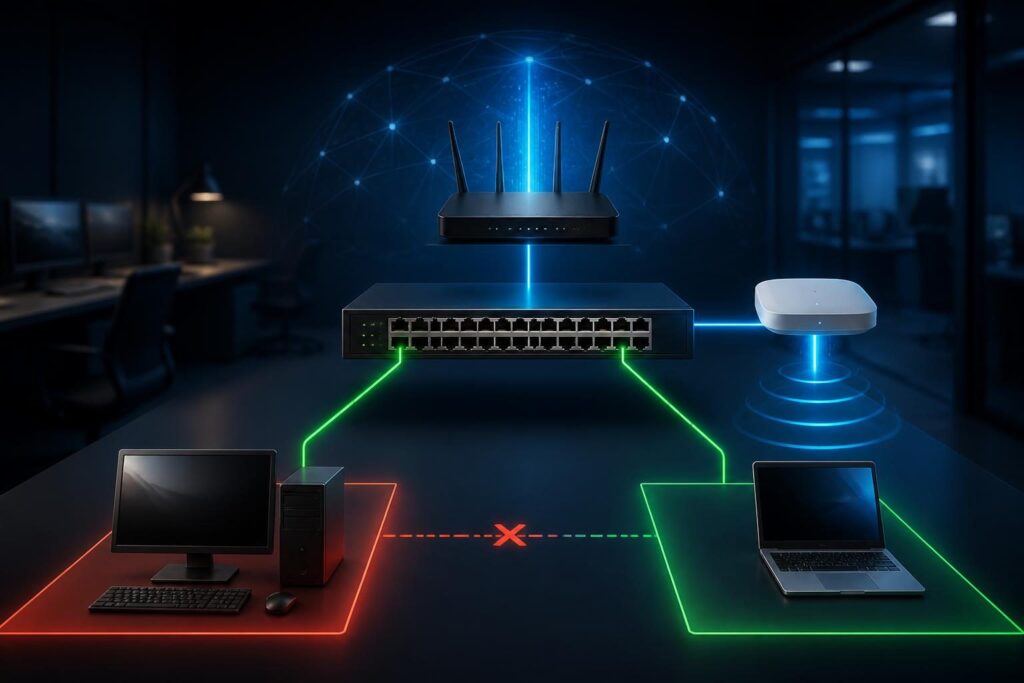
Devices can ping gateway but not each other when a network allows traffic toward the router but blocks peer-to-peer communication. That result is useful evidence, not a contradiction. It points toward segmentation, isolation, filtering, or local-link problems.

A gateway is the router or firewall that forwards traffic beyond a device’s local network. A successful ping to it proves that several basic functions work. The device has a usable address, a route to the gateway, and enough local connectivity to receive a reply.
However, that test does not prove that two clients share the same VLAN, subnet, security zone, or forwarding policy. Work through the checks below in order. Avoid changing several settings at once, because that can hide the original cause.
Start by defining the exact traffic pattern
First, record which devices fail to communicate. Test more than one pair if possible. A laptop that cannot reach a printer tells a different story from every wireless client failing to reach every other wireless client.
- Can each device ping its own gateway?
- Can the devices ping each other by IP address?
- Does the failure affect wired devices, wireless devices, or both?
- Can a device reach a server in another network?
- Does the application fail, or does basic IP connectivity fail too?
Test by IP address before testing hostnames. Name resolution adds DNS variables, while an IP test focuses on routing and filtering. Also note whether the failure is one-way or mutual. One-way results often suggest a host firewall, incorrect network profile, or stale neighbor information.
Capture the source and destination addresses, subnet masks, VLAN assignments, and connection type. If one device uses a guest SSID and another uses an employee SSID, isolation may be intentional.
When devices can ping gateway but not each other, compare a successful path with a failed peer path before changing settings.
Check when devices cannot reach each other across VLANs
A VLAN is a logical Layer 2 network carried across compatible switches and access points. Devices in different VLANs do not normally exchange local Ethernet frames. A router or firewall must route between them, and its rules decide whether that traffic is allowed.
Many business wireless systems also provide client isolation. This feature prevents wireless clients from talking directly to one another. It can protect guest users, but it may also block printers, file shares, discovery, casting, or peer management tools.
Compare the network assignments
- Check the SSID or switch port used by each device.
- Confirm the VLAN ID assigned to each SSID and access port.
- Review the access point’s guest, isolation, or peer-blocking settings.
- Confirm that the switch trunk carries the expected VLANs.
- Check whether an access point profile differs from the others.
If all clients can reach the gateway but cannot reach other wireless clients, client isolation deserves early attention. If wired and wireless devices fail across a boundary, review inter-VLAN rules instead.
Do not disable isolation across the entire network without a purpose. Instead, identify the required communication. A printer VLAN may need to accept print traffic from an employee VLAN while rejecting unrelated access. That design is safer than making every segment fully open.
Review firewall zones when devices cannot reach each other
Firewalls commonly group interfaces into zones such as trusted, guest, staff, servers, or internet. A rule may allow each zone to reach the gateway and the internet while denying traffic between clients or between zones.
This explains why devices can ping gateway but not each other even when their addresses and cables look correct. The gateway answers its own traffic, but it may reject forwarded traffic between interfaces.
In practice, devices can ping gateway but not each other when the gateway permits management or internet access but denies peer forwarding. Treat that pattern as a policy clue rather than proof of a failed switch.
Inspect the policy that should handle the source and destination networks. Confirm the rule order, address objects, protocol, and logging behavior. A rule that permits web traffic does not necessarily permit ICMP, which is the protocol used by ping.
Use more than ping when validating the intended policy. For example, test the required TCP port for a file share, printer, database, or management service. A blocked ping does not always mean the application is blocked. Conversely, a successful ping does not prove that the application port is open.
Check return traffic as well. Stateful firewalls track connections and usually allow replies to permitted sessions. A wrong route, asymmetric path, or restrictive return rule can still produce selective failure.
For background on how routers and firewalls alter traffic flows, see Cloudflare’s overview of NAT. NAT is not the same as filtering, but both functions often exist on the same gateway.
Verify subnet boundaries and addressing
A subnet mask tells a device which addresses are local and which require the gateway. If two devices have incompatible masks, one may try to reach the other directly while the other expects routed traffic. That mismatch can create confusing, selective results.
Compare the IP address, mask, default gateway, and DHCP source on both devices. Look for overlapping ranges, manually assigned addresses inside DHCP pools, and an unexpected secondary address.
- Confirm that the intended clients receive addresses from the correct scope.
- Check that the gateway belongs to the same local subnet as the client.
- Look for a device using a static address from another VLAN.
- Review DHCP options after recent network changes.
- Check for duplicate addresses before trusting ARP evidence.
Two devices can reach a gateway while still belonging to different networks. The gateway may support both networks, yet its policy may intentionally prevent communication between them. For a deeper address comparison, consult this guide to subnet mask mistakes on small business networks.
Do not “fix” a subnet by changing masks at random. A mask change can create overlapping networks and interrupt more clients. Confirm the intended addressing plan first, then change DHCP or static settings in a controlled window.
Use ARP and neighbor data carefully
ARP, or Address Resolution Protocol, maps an IPv4 address to a device’s hardware address on the local network. Before sending a local packet, a device usually needs an ARP response. If ARP fails, the traffic may never reach the destination.
On Linux, inspect the neighbor table with a suitable command such as ip neigh. Windows provides neighbor information through its network commands. Treat the output as evidence rather than proof. A stale entry, duplicate address, sleeping device, or endpoint firewall can mislead the test.
Ask these questions:
- Does the source have a neighbor entry for the destination?
- Is the entry reachable, stale, incomplete, or failed?
- Does the switch learn the destination MAC address on the expected port?
- Do both devices claim the same IP address?
If an entry remains incomplete, check VLAN membership, wireless isolation, cabling, and switch forwarding. If the MAC address changes unexpectedly, investigate a duplicate address or a device moving between ports. This duplicate IP conflict guide explains how DHCP, ARP, and switch data can identify the devices involved.
Inspect switch configuration and forwarding
Switches forward frames using learned MAC addresses. A port can show link activity while still using the wrong access VLAN. Trunk errors can also remove a VLAN from the path between an access point, switch, and gateway.
Review the relevant ports without changing them immediately. Check access versus trunk mode, native VLAN settings, allowed VLAN lists, tagging expectations, and port security. Confirm that the same VLAN exists across every switch path the traffic must cross.
Also inspect:
- MAC address table entries for both endpoints.
- Port-security violations or restricted learning.
- Spanning Tree state and recent topology changes.
- Voice, guest, or protected-port settings.
- Storm-control or broadcast filtering that may affect discovery.
A protected or isolated switch port may deliberately block traffic between ports while permitting gateway access. Some switches call this private VLAN, port isolation, protected port, or a similar name. Vendor labels differ, so verify the feature in the device documentation and configuration export.
For a focused port review, use the safe switch-port troubleshooting guide. It covers link state, VLAN settings, cabling, negotiation, and logs.
Check endpoint firewalls and security software
When only one computer refuses peer traffic, inspect that endpoint before changing shared network settings. Operating systems often apply different firewall profiles to private, public, and domain networks.
Confirm the active profile and review inbound rules for the required service. A computer may answer the gateway but reject ICMP echo requests and application connections from other clients. Security software can also apply network trust policies that differ from the operating system firewall.
Use a narrowly scoped test. Permit only the required protocol, source range, and destination port, then test and remove or formalize the rule. Do not turn off endpoint protection as a general diagnostic method.
A safe decision path for selective connectivity
Use this sequence to reduce guesswork:
- Test gateway and peer access by IP address.
- Compare addresses, masks, gateways, SSIDs, and VLANs.
- Check client isolation and protected-port features.
- Review firewall zones and inter-network policy.
- Inspect ARP or neighbor state and switch MAC learning.
- Test the required application port, not only ping.
- Review endpoint firewall profiles on isolated devices.
- Document the confirmed cause before making a permanent change.
If the issue began after a switch, access point, firewall, or DHCP change, preserve the current configuration before editing it. Record the old and new values, define a rollback, and test one affected pair first.
When to escalate the investigation
Escalate when the evidence conflicts, the network carries important business services, or the change could affect multiple VLANs. Packet captures may be necessary to determine whether traffic leaves the source, crosses the gateway, reaches the destination, and receives a reply.
Remote troubleshooting can work well when someone onsite can identify cables, ports, and device labels. Tech Rescue Ops LLC can help review addressing, VLAN paths, firewall policy, and switch evidence without making blind changes.
The key lesson is simple: gateway access proves reachability to the gateway, not unrestricted peer communication. VLAN isolation, firewall zones, subnet boundaries, ARP behavior, and switch configuration explain most selective patterns. Test each layer separately, preserve evidence, and change only the control that matches the intended network design.