
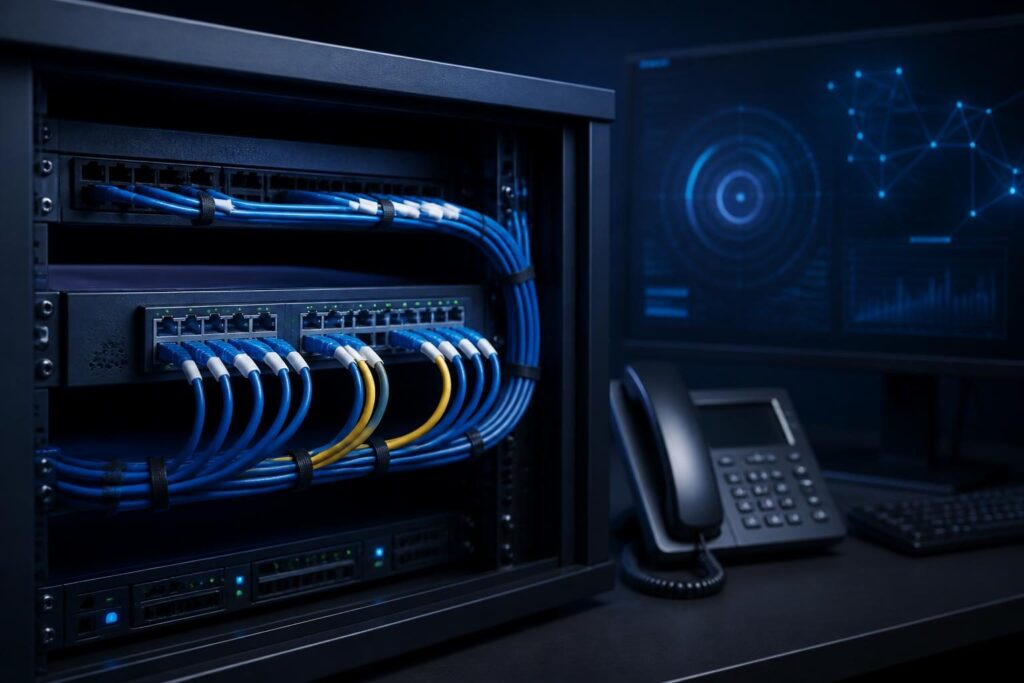
Unexpected MAC address network troubleshooting starts with a simple question: where did the switch learn this address? A MAC address identifies a network interface at the local network layer. It does not, by itself, prove which person or physical device is responsible.

An unfamiliar entry may have an innocent cause. The switch table may still contain an old entry, a hypervisor may present several virtual interfaces, or a desk phone may pass a computer through its network port. A patch lead connected to the wrong wall jack can create the same confusion.
What an unexpected MAC address actually tells you
A managed switch builds a forwarding table by observing source MAC addresses. The table associates an address with a switch port and often a VLAN. Most entries are dynamic, so they expire after a period without traffic. The exact aging behavior depends on the switch and its configuration.
That table answers “where was this address recently seen?” It does not necessarily answer “what device is connected there now?” This distinction matters when an endpoint moves, disconnects, sleeps, or connects through another switch.
Before changing anything, record the MAC address exactly as shown. Normalize separators only for searching. Also note the VLAN, switch name, port, timestamp, and whether the entry is dynamic or static.
- Check whether the address has six hexadecimal pairs.
- Compare uppercase and lowercase formats consistently.
- Look for duplicate appearances on different ports.
- Record the connected device or user only after verification.
Do not rely on the first three pairs alone. An OUI, or organizationally unique identifier, can suggest a manufacturer, but virtual adapters and private addressing can make that clue incomplete.
Start with evidence, not a port shutdown
Unexpected MAC address network troubleshooting is safest when it follows the evidence path from the switch to the endpoint. Avoid shutting down a port immediately unless the device creates an active security or availability risk.
First, identify the switch that reported the address. Then search its forwarding database. Common commands include a vendor-specific “show MAC address-table” command or a web interface search. Use read-only access when possible.
Next, inspect the port. Note its description, access or trunk mode, VLAN, voice VLAN, link state, speed, and recent log messages. A port description may reveal a room or jack, but treat labels as useful hints rather than proof.
If the address appears on an uplink or trunk, continue downstream. The first switch may only know that the address arrived from another switch, wireless access point, hypervisor, or phone. Follow the path one segment at a time.
Google’s effective troubleshooting guidance recommends collecting evidence, forming a testable explanation, and changing one variable at a time. That method prevents a rushed response from hiding the original cause.
Trace the address through switching infrastructure
When unexpected MAC address network troubleshooting reaches the switching layer, compare the address across devices. A normal path often looks like this:
- An edge switch learns the MAC on an access port.
- Next, the distribution switch learns it on the edge-switch uplink.
- Finally, the router or firewall sees the traffic through its connected interface.
If two switches report the same MAC on different links at the same time, investigate. A loop, incorrect trunk, bridging device, or rapidly moving endpoint may cause MAC flapping. Some switches log messages when an address moves between ports.
Do not confuse normal mobility with a loop. A laptop that changes from wired to wireless may move between ports once. Repeated movement across ports, especially with broadcast disruption, deserves faster attention.
For a port-level reference, see network switch port troubleshooting. It covers link state, VLAN settings, cabling, negotiation, and logs that help confirm the physical path.
Check for stale switch entries
A stale entry is a record that remains after the device stops using a port. Dynamic entries normally age out, but the wait can make an old connection look current. Static entries do not age out in the same way.
Unexpected MAC address network troubleshooting should compare the table’s age, if available, with the endpoint’s known activity. Then disconnect the suspected device briefly, if the business impact is acceptable. Watch whether the entry disappears, moves, or reappears.
Some switches refresh an entry whenever they receive traffic. A sleeping computer may vanish, while a device sending background traffic remains visible. A switch reboot can also clear dynamic entries, but it is rarely the best first test.
Clear one dynamic entry only when you understand the command and its scope. A broad table flush can cause temporary flooding while the switch relearns destinations. Follow the manufacturer’s documentation and preserve the original output first.
Account for virtual machines and hypervisors
Virtualization commonly creates more MAC addresses than physical servers. A hypervisor may host several virtual machines, management interfaces, storage networks, and virtual switches. The physical switch sees those interfaces through one server port.
If the unexpected address appears on a server uplink, check the hypervisor inventory. Compare the switch address with virtual machine settings, host management interfaces, and recently created or restored guests.
Migration can also explain a moving address. A virtual machine that moves between hosts may appear on different switch ports during the transition. Network teaming and bridging can produce additional addresses or unusual learning behavior.
- Review the virtual machine’s configured adapter address.
- Check recent migrations, clones, restores, and template deployments.
- Confirm that the virtual switch maps to the intended VLAN.
- Look for duplicate manually assigned MAC addresses.
Do not edit a virtual MAC address casually. Licensing, DHCP reservations, monitoring, and firewall rules may depend on it. Coordinate changes with the virtualization and network records.
Inspect phone pass-through ports and desk layouts
An IP phone often has two Ethernet connections: one to the wall jack and one to a computer. The phone can bridge or switch traffic for the attached computer. Therefore, a switch may learn both the phone and computer MAC addresses on one physical port.
This is normal when the port supports a voice VLAN and a data VLAN. Confirm the port configuration before treating multiple addresses as unauthorized. Check the phone’s label, its web interface, and the attached computer’s network adapter.
A small unmanaged switch can create the same pattern. So can a docking station, conference-room adapter, wireless bridge, or printer with multiple interfaces. Ask what equipment sits between the wall jack and the endpoint.
During verification, avoid unplugging a phone that supports emergency calling or a critical reception line without approval. A short, planned test is safer than an unannounced disconnection.
Use cabling tests to find the physical mistake
Cabling errors are frequent causes of confusing MAC locations. Someone may patch a room into the wrong switch port, connect two wall jacks together, or move a cable while cleaning a cabinet.
Start with the switch port label and the patch-panel label. Then use a cable tester, tone-and-probe kit, or documented link-light test. Ask a person at the endpoint to disconnect one cable while you watch the switch table.
When the address disappears from one port and appears on another, you have a useful correlation. Repeat the test if possible. A single observation can be misleading when a nearby device or uplink also carries the address.
For networks with incorrect addressing or segmentation, review subnet mask misconfiguration troubleshooting. A wrong subnet does not change a MAC address, but it can make an identified device appear unreachable or incorrectly placed.
Separate an unknown device from an unauthorized device
An unknown MAC address needs identification before enforcement. Check DHCP leases, endpoint management, wireless controller records, IP phone inventory, virtualization systems, and asset documentation. Match the MAC with an IP address and hostname, but remember that DHCP data can become stale too.
Ask whether the device could be a guest laptop, personal phone, camera, badge reader, printer, access point, or temporary contractor system. Some devices use randomized MAC addresses for wireless privacy. That behavior can make a familiar device appear new after reconnecting.
Once you identify the endpoint, compare it with policy. An unmanaged device may still be unauthorized, while a new approved device may simply lack documentation. Preserve switch logs and timestamps if you suspect deliberate access.
Do not block an address solely because its manufacturer looks unfamiliar. Instead, verify the physical location, owner, purpose, and network segment. If the device presents a credible security concern, isolate it through an approved control and escalate according to your incident process.
Confirm the result and improve records
After correcting the cause, repeat the lookup. Confirm that the MAC appears on the expected port, in the expected VLAN, and with a sensible relationship to its IP address. Check for movement or duplicate entries over time.
Update the switch port description, patch-panel record, asset inventory, and virtualization notes. Record exceptions such as phones with attached computers or servers hosting multiple guests.
Useful ongoing checks include alerts for MAC flapping, unexpected trunk learning, new devices on restricted ports, and changes to important access ports. Alerts need context, or normal phone and virtualization behavior will create noise.
For a broader review, Tech Rescue Ops LLC provides remote network troubleshooting for businesses that need help correlating switch data, endpoint records, and physical findings. This evidence-based process keeps unexpected MAC address network troubleshooting focused and safe.
When to get help
Call for professional assistance when the address moves repeatedly, affects many devices, appears behind an unexpected trunk, or may represent unauthorized access. Remote support can guide evidence collection, while someone onsite performs safe cable and device checks. Keep the original logs and configuration exports before making broad changes.